Local Log Import Format

Topic:

How do I Import Local Logs from a Text File?

Layout:

You will format the CSV file in the following way:

Driver ID, Timestamp, Status

  • Driver ID:
    • Must match the Primary ID in RapidLog
  • Timestamp:(mm/dd/yyyy hh:mm(am/pm))
    • 09/10/2019 05:15pm
    • 09/10/2019 17:15
  • Status:
    • 1 or 4 (1 = Off Duty, 4 = On Duty)
    • In or Out
    • On or Off
  • Violations – 0 or more columns
    • ClassSubClass in each column

CSV File Format Examples:

“123”,”01/11/2019 12:00am”,”In”
“123”,”01/11/2019 03:30pm”,”Out”
“123”,”01/11/2019 16:30″,”ON”
“123”,”01/12/2019 02:00″,”OFF”
“234”,”01/12/2019 01:01″,”1″,”v1″,”u4″,”s3″
“234”,”01/12/2019 03:12″,”4″,”r2″

File Import Instructions:

  1. Edit the Directories section in the C:\Windows\rl5.ini file by adding EobLogImportRoot=Your Data folder.
    • Example: EobLogImportRoot=C:\ProgramData\RapidLog\Data
  2. The local log import file has to be saved as a .CSV file
  3. In the company data folder you will need to create a folder named EclipseLocal
  4. Copy your local log .CSV file to the RapidLog\Data\Company\EclipseLocal folder
  5. To import the local log .CSV file run the following command:
    • “C:\Program Files (x86)\RapidLog\RapidLog.exe” RLCompanyCode -L EclipseLocalFormat
Deleting Logs

Topic:

How do I delete a Log entered in RapidLog?

Instructions:

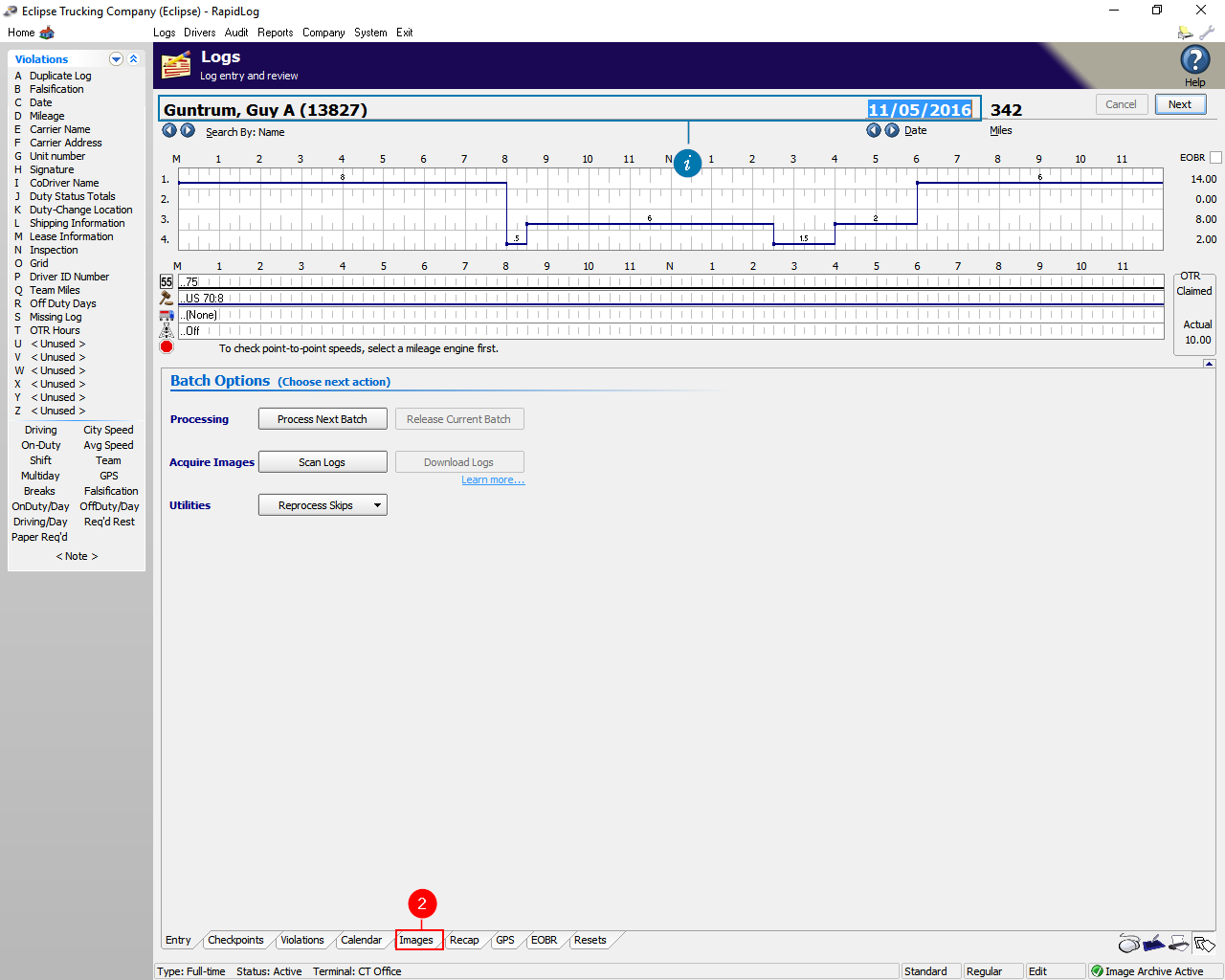
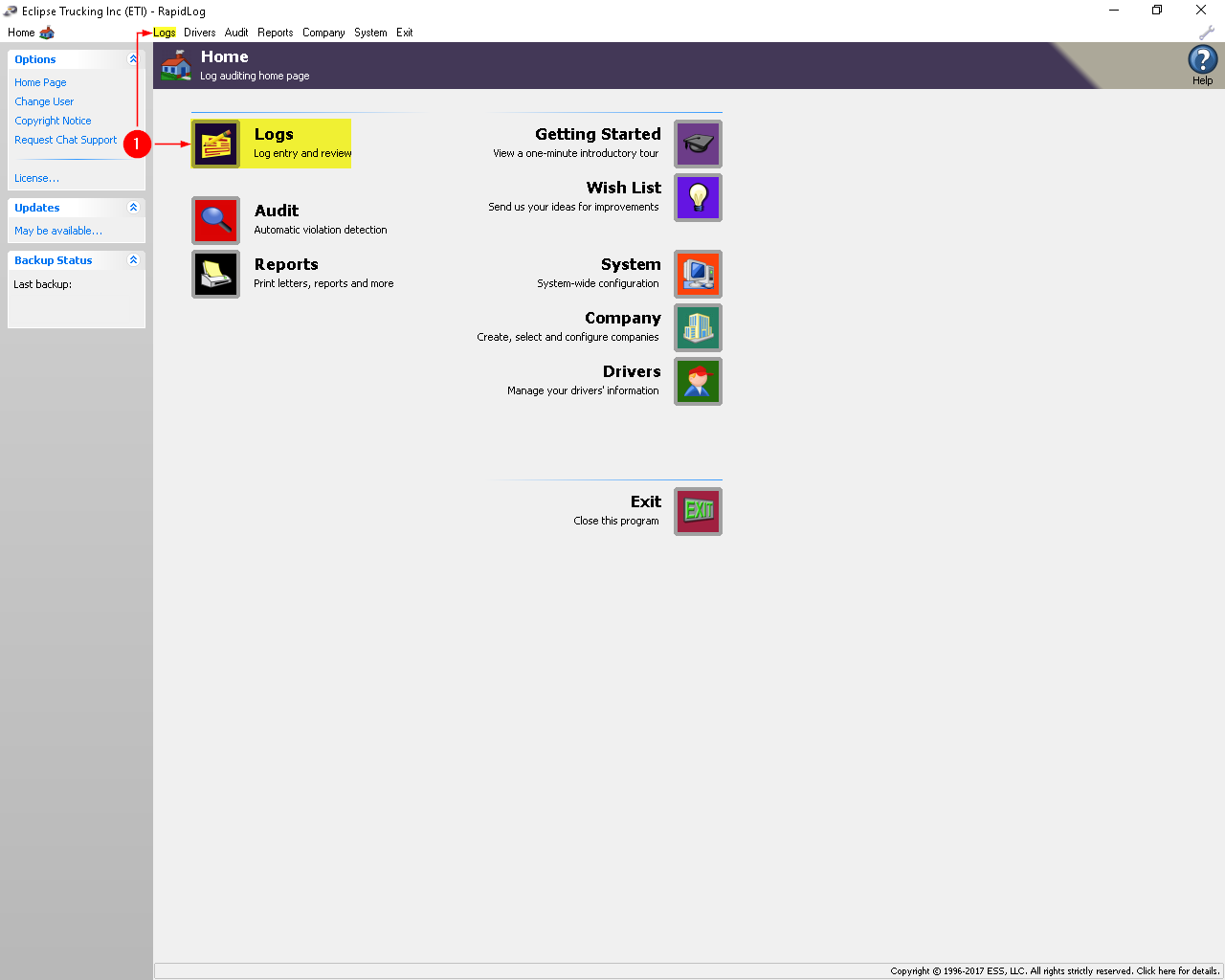
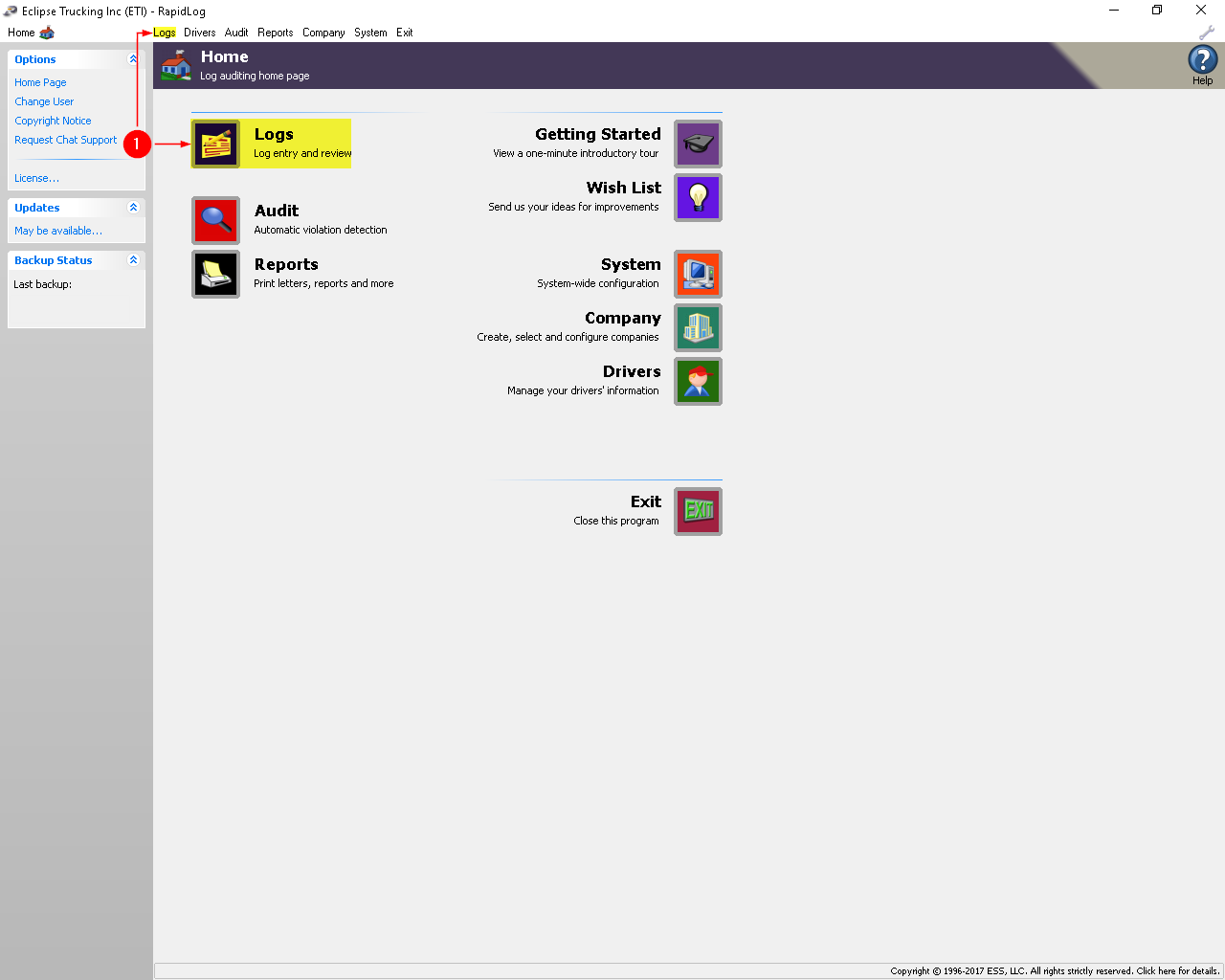
  1. Go to the ‘Logs’ page in Rapidlog.
  2. Click on the ‘Images’ tab at the bottom.
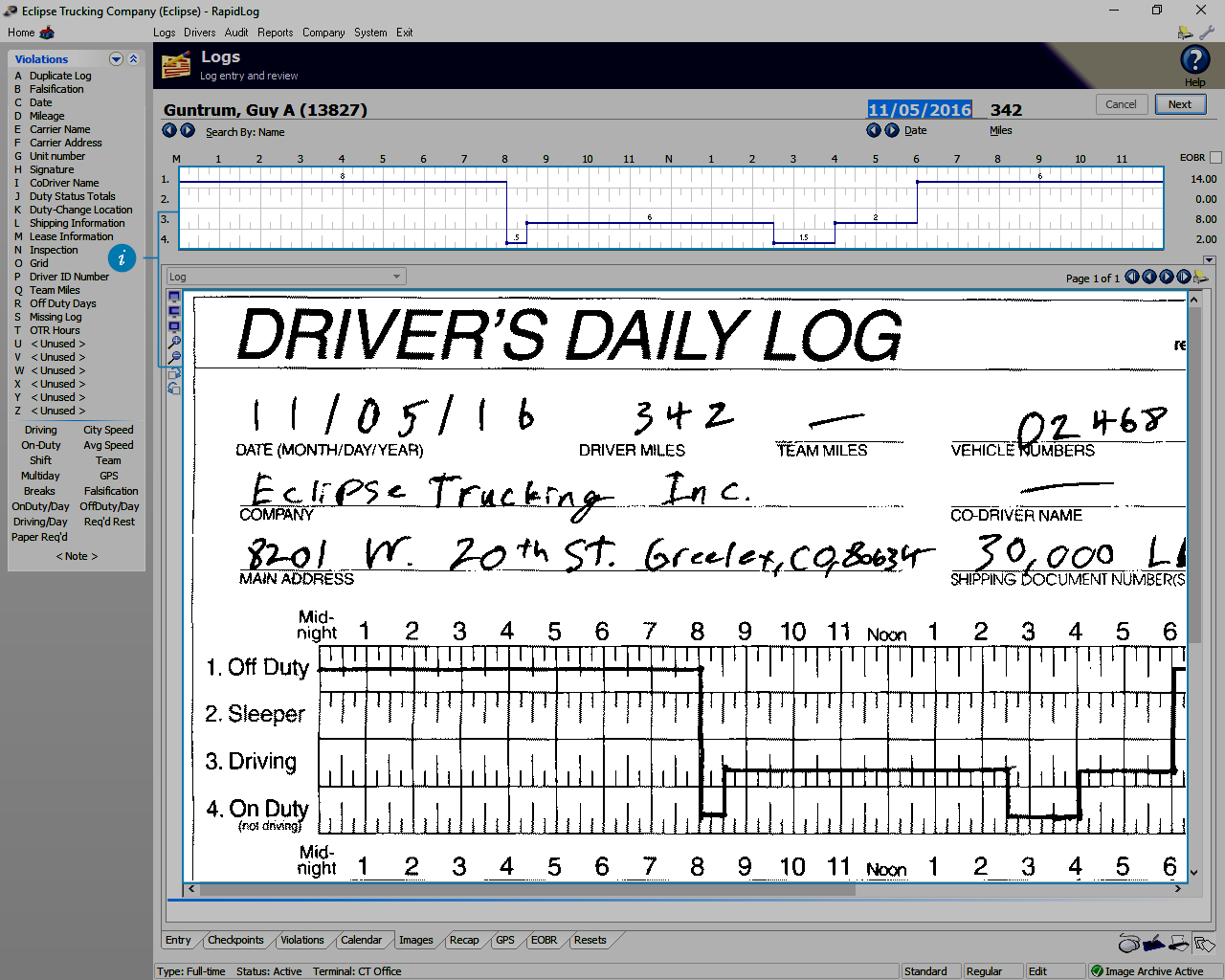
  3. Info: Make sure you’re on the correct driver and date you want to delete.
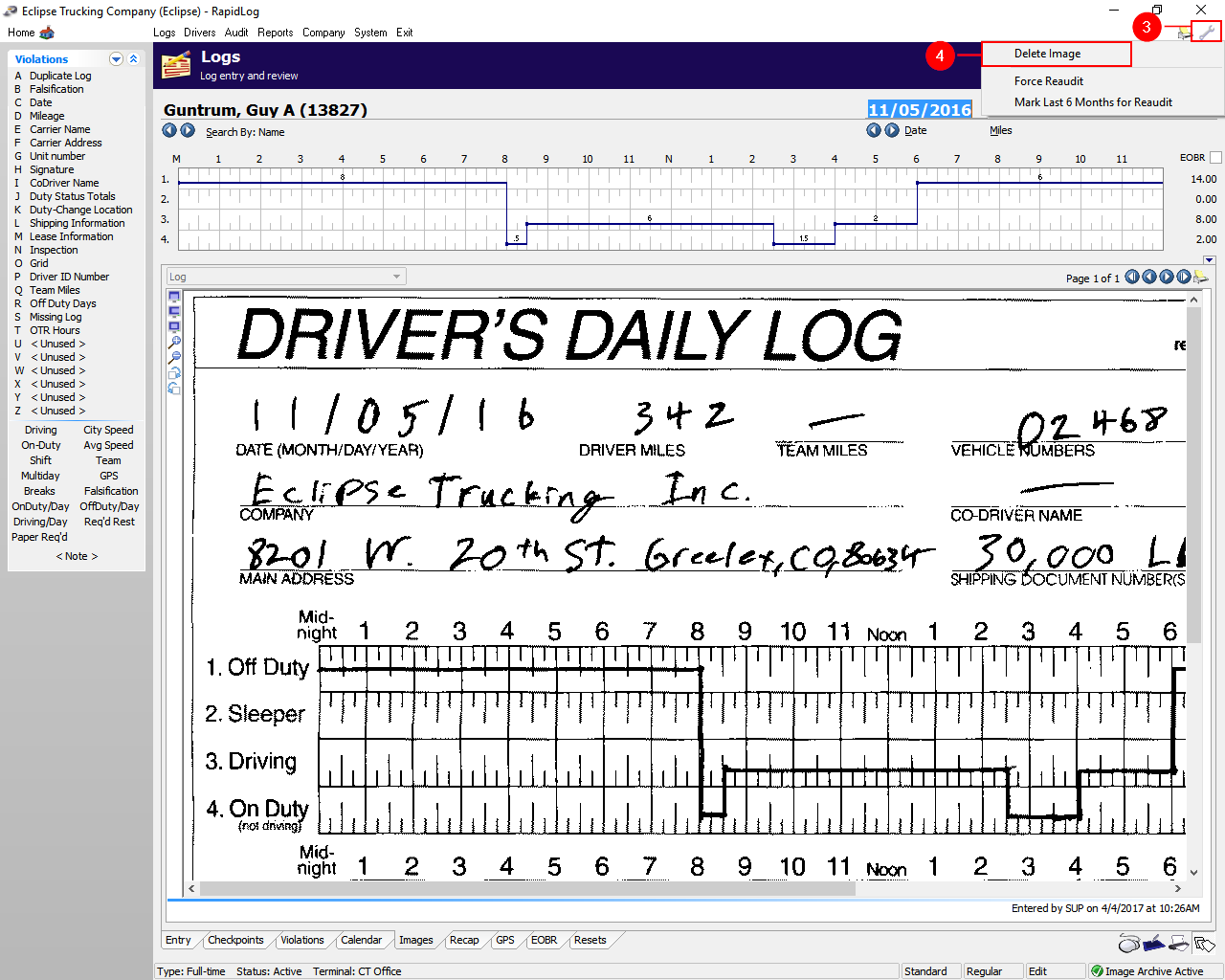
  4. Click the ‘Wrench’ in the upper right.
  5. Then select ‘Delete Image’. If you do not see ‘Delete Image’, then click on the ‘Image’ tab at the bottom.
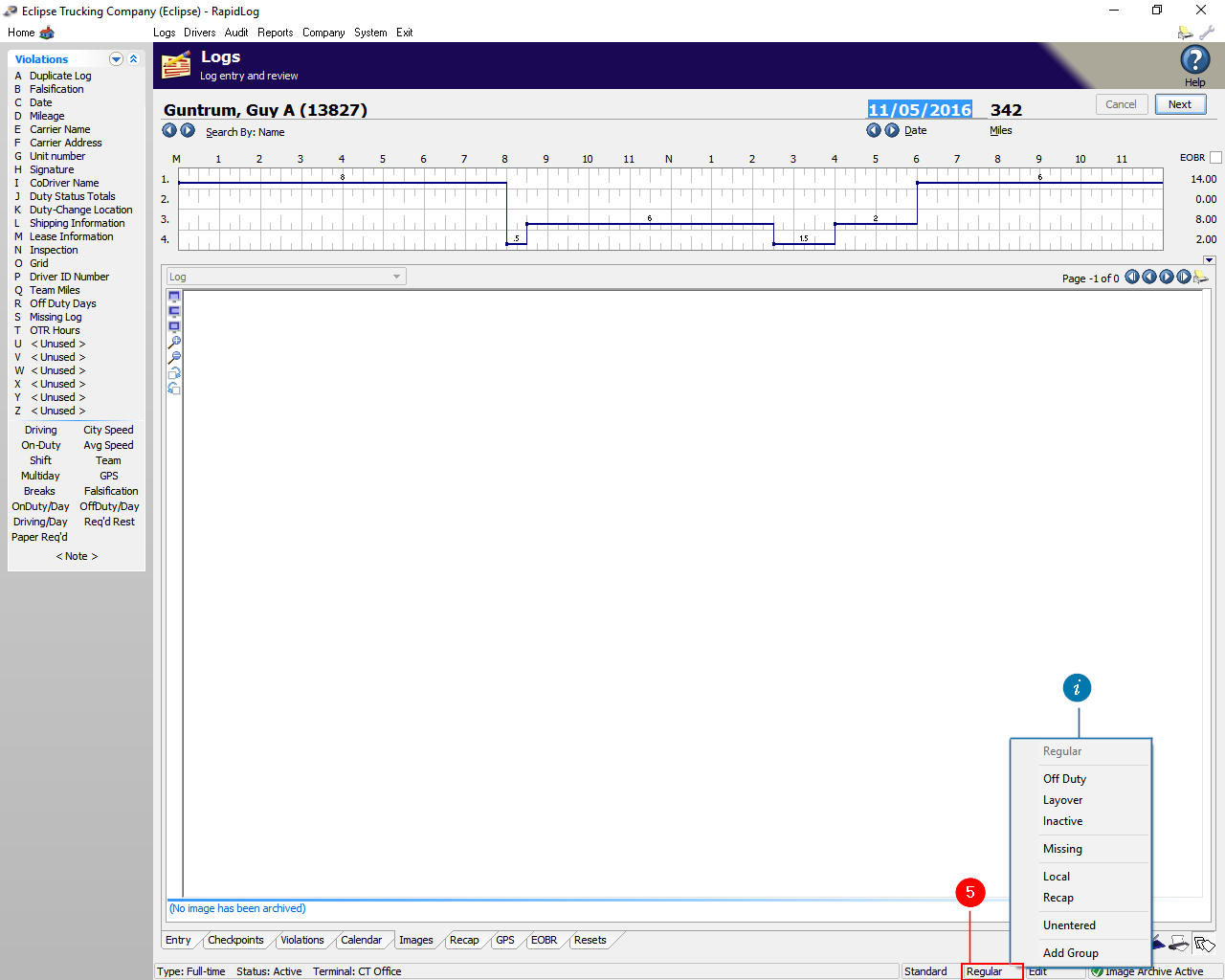
  6. Click the ‘Regular’ button at the bottom right, then select ‘Unentered’ to clear the log data.
  7. Info: You have other options besides ‘Unentered’ if you don’t need to fully remove the log. 

Instructions with Images:

Step 1: Go to the ‘Logs’ page in Rapidlog.

Step 2: Click on the ‘Images’ tab at the bottom.
Info: Make sure you’re on the correct driver and date you want to delete.

Info: There are two separate parts of data that need to be deleted. One is the image and the other is the grid data.

Step 3: Click the ‘Wrench’ in the upper right.
Step 4: Then select ‘Delete Image’. If you do not see ‘Delete Image’, then click on the ‘Image’ tab at the bottom.

Step 5: Click the ‘Regular’ button at the bottom right, then select ‘Unentered’ to clear the log data.
Info: You have other options besides ‘Unentered’ if you don’t need to fully remove the log.

Logs Page Calendar

Topic:

How can I skip to a different day, on the logs page, quickly without having to type it in?

Instructions:

  1. Click on the ‘Logs’ page.
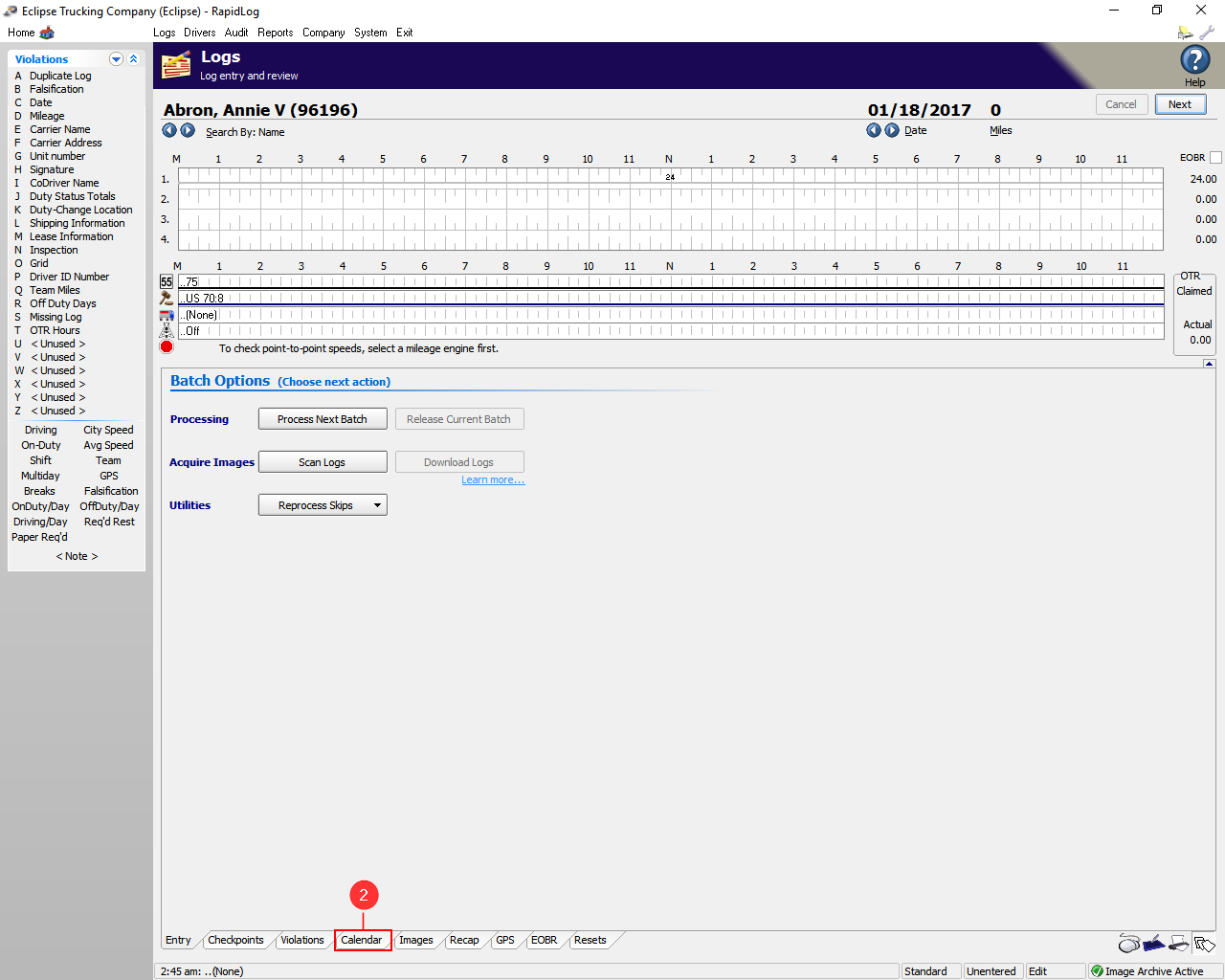
  2. Click the ‘Calendar’ tab at the bottom.
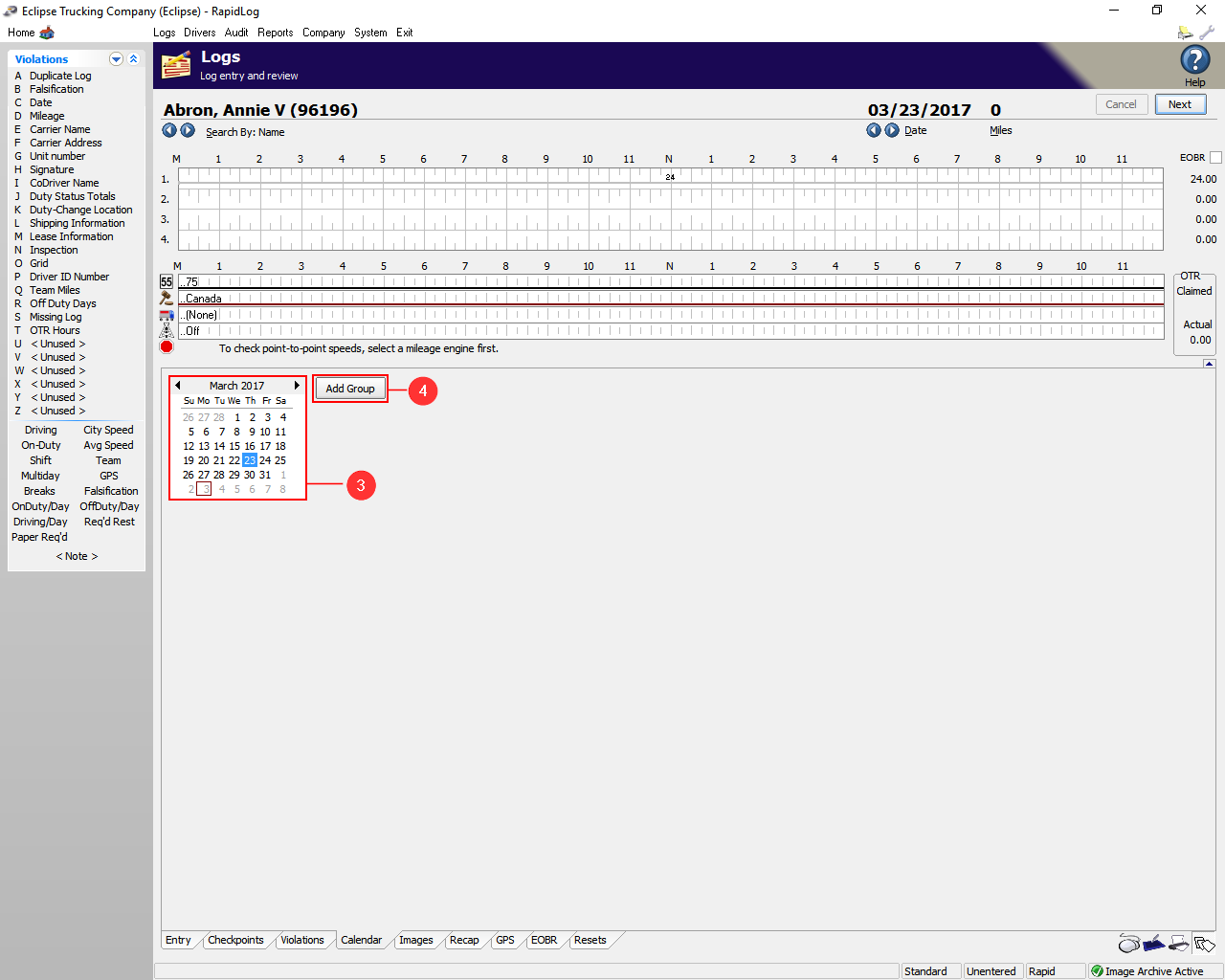
  3. Here you can change the Month, Day, and year you want to view.
  4. Add Group allows you to add a group of logs for a date range.
  5. Info: The logs Calendar allows you to move to dates quickly on one driver. It also allows you to add multiple log types to a date range.

Instructions with Images:

Step 1: Go to the ‘Logs’ page.

Step 2: Click the ‘Calendar’ tab at the bottom.

Step 3: Here you can change the Month, Day, and year you want to view.
Step 4: Add Group allows you to add a group of logs for a date range.
Info: The logs Calendar allows you to move to dates quickly on one driver. It also allows you to add multiple log types to a date range.

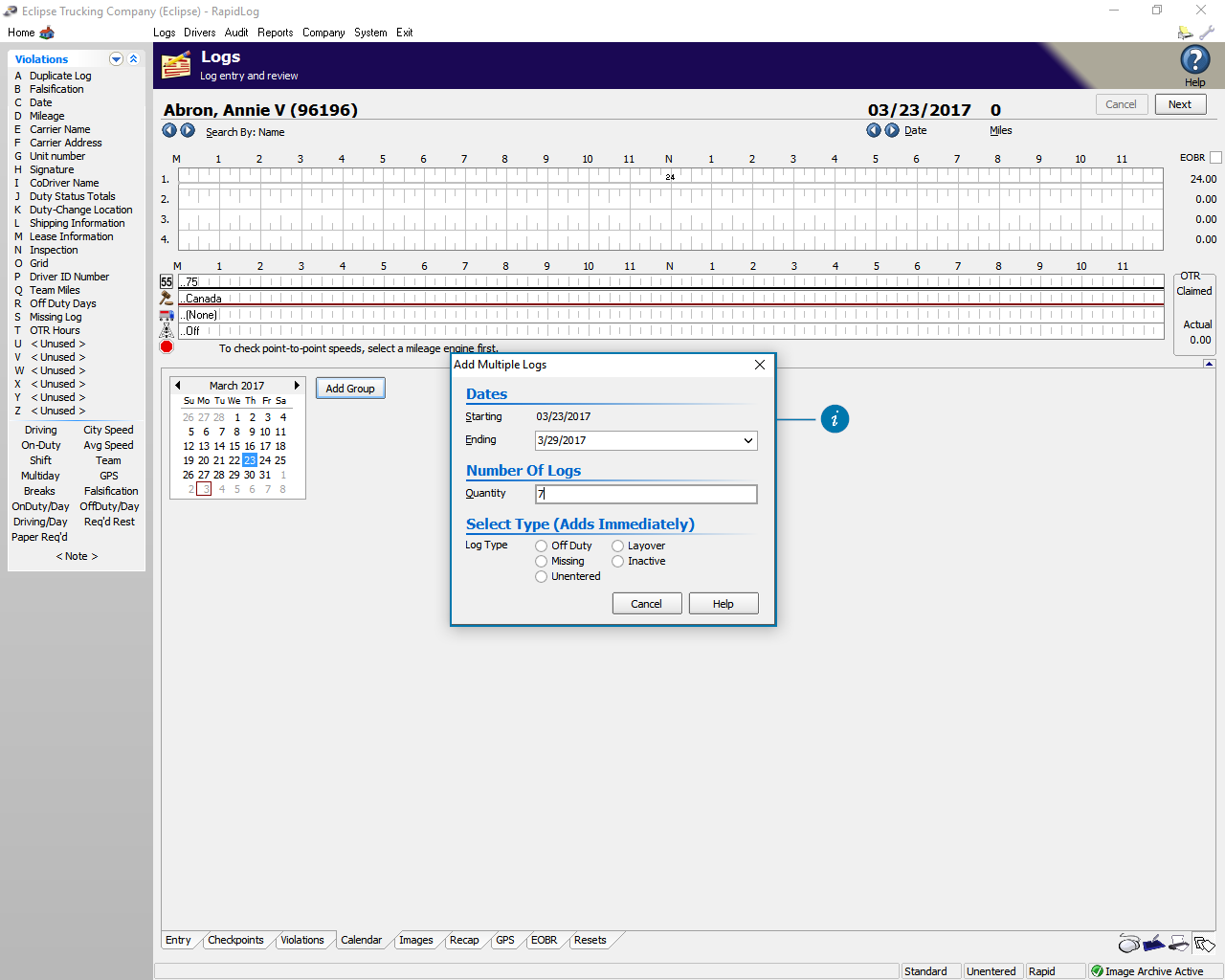
Add Group Example: The driver is inactive for 7 days, from 3/23 – 3/27. First enter the date range, the hit the ‘Tab’ key on your key board, this will fill in the ‘Quantity’. Next select the log type you would like to add. Rapidlog will automatically add that log type to the date range you selected.