How to add and audit team drivers

Topic:

How to add and audit team drivers

Instructions:

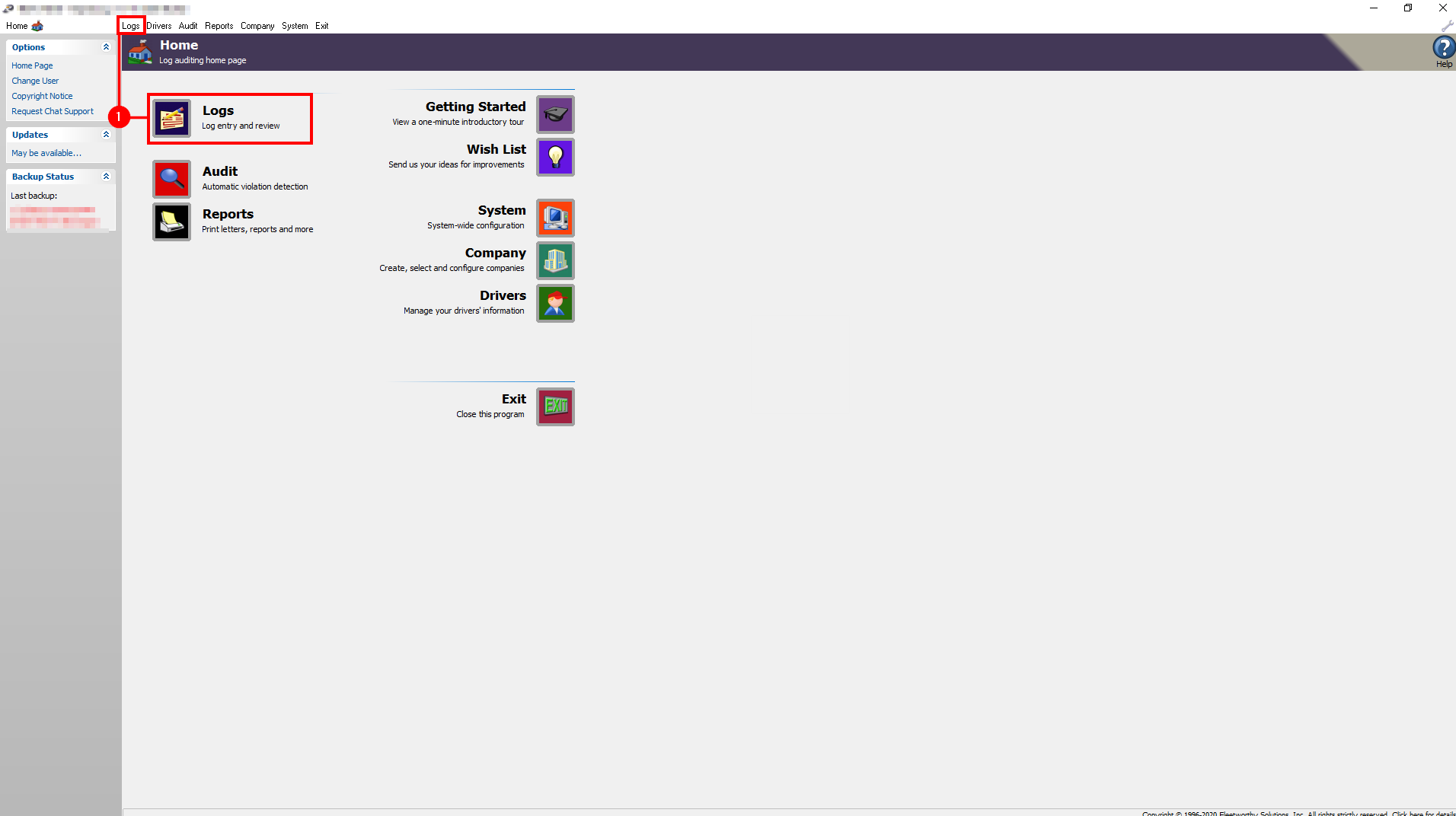
  1. From the home screen, click “Logs”

  2. Find one of the drivers that will be a part of the Team.

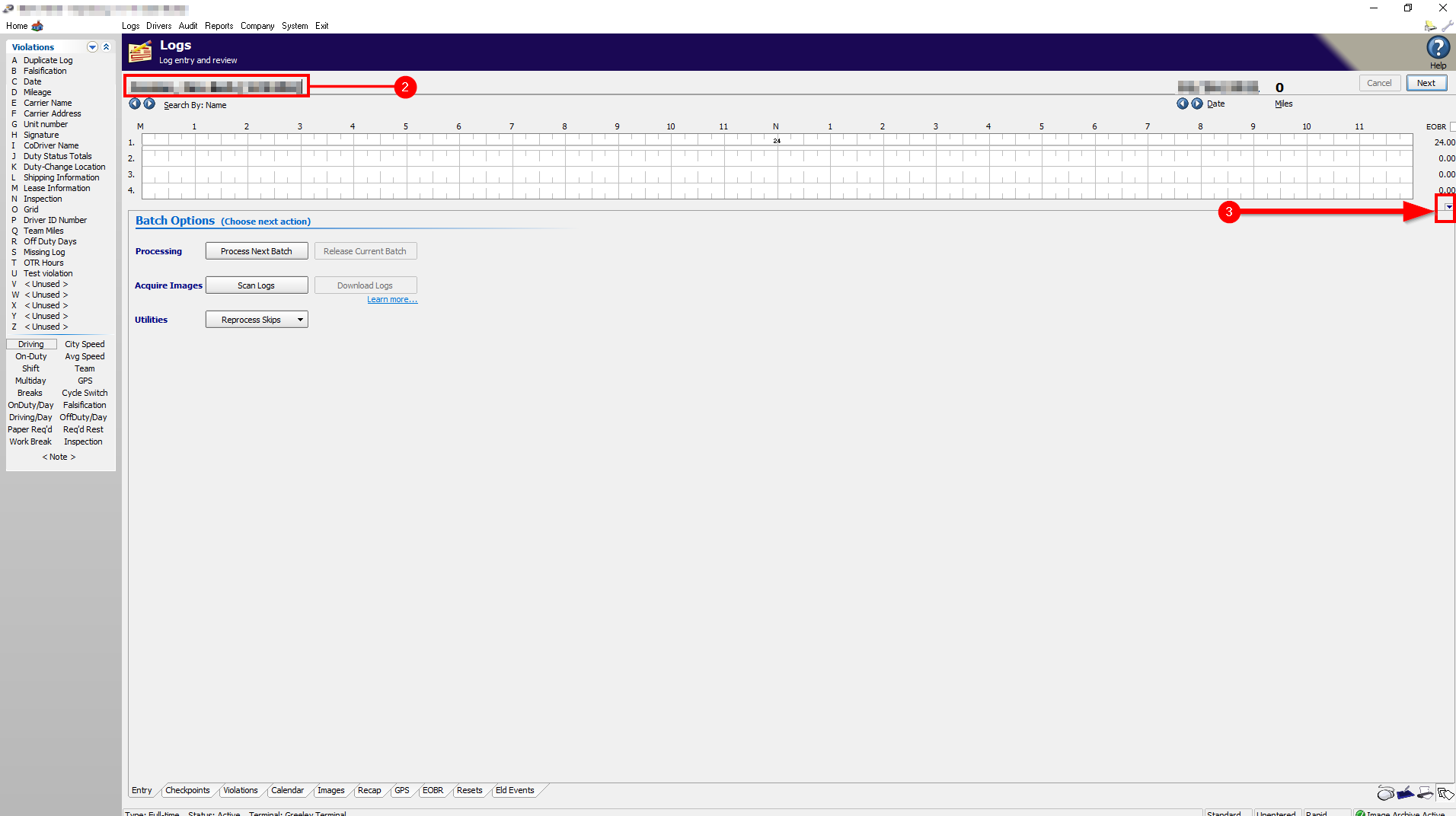
  3. Under the duty status totals, you will see a small “Drop Down Menu” button. Click it.

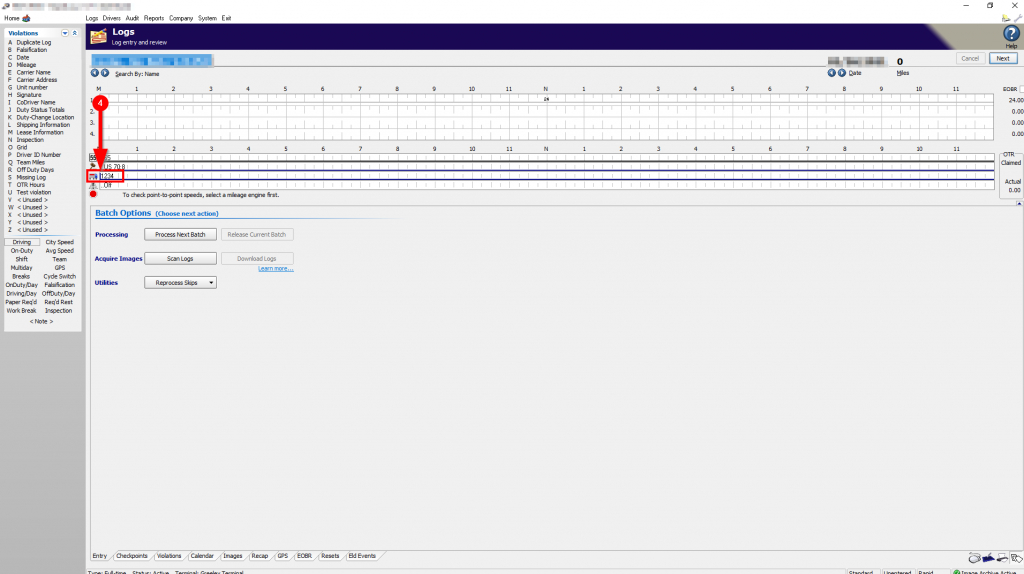
  4. On the new menu, you will see 4 time bars show up. The third bar down on this menu will show a Truck icon. Click on the truck icon at 0 (Or the midnight marker)

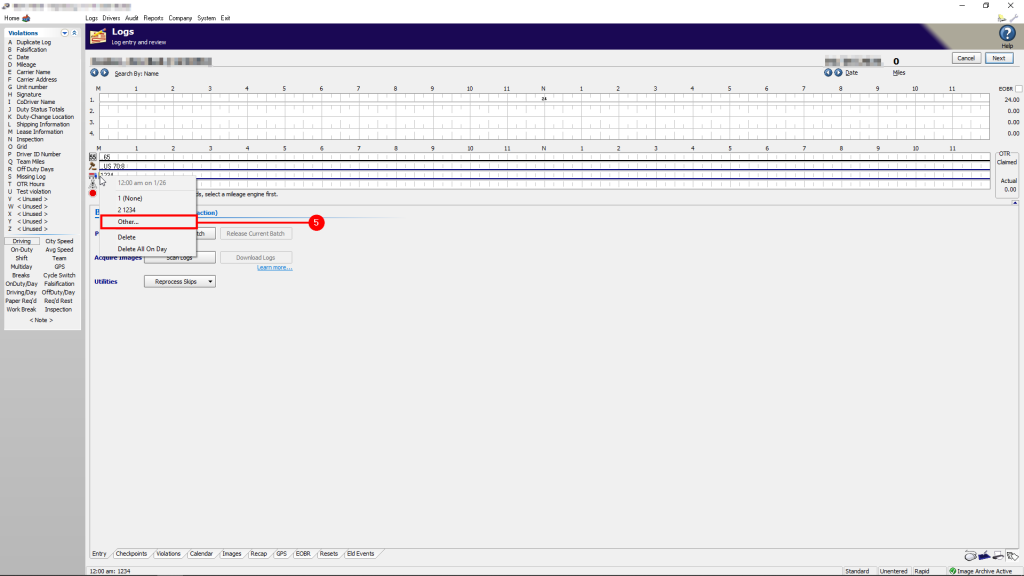
  5. Click “Other”

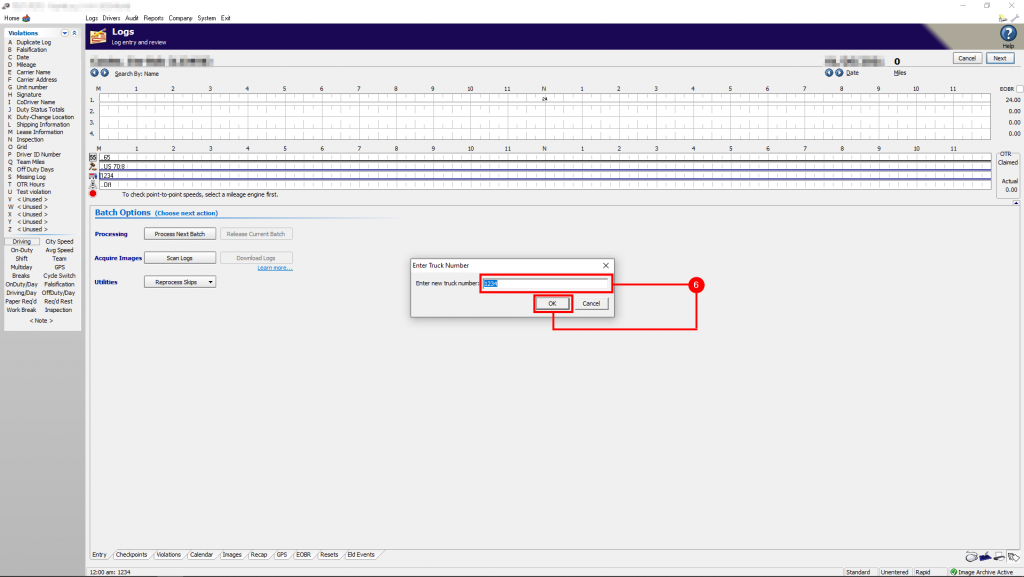
  6. Enter the Truck Number of the second member of the Team. Click “Ok”

To Audit Team Conflict Falsifications

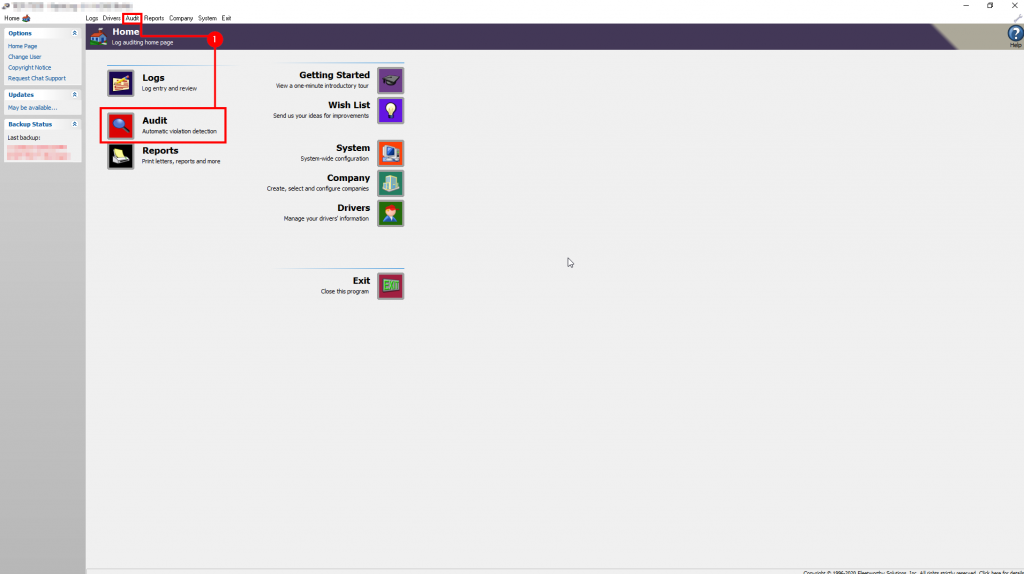
  1. From the Home screen, Click “Audit”

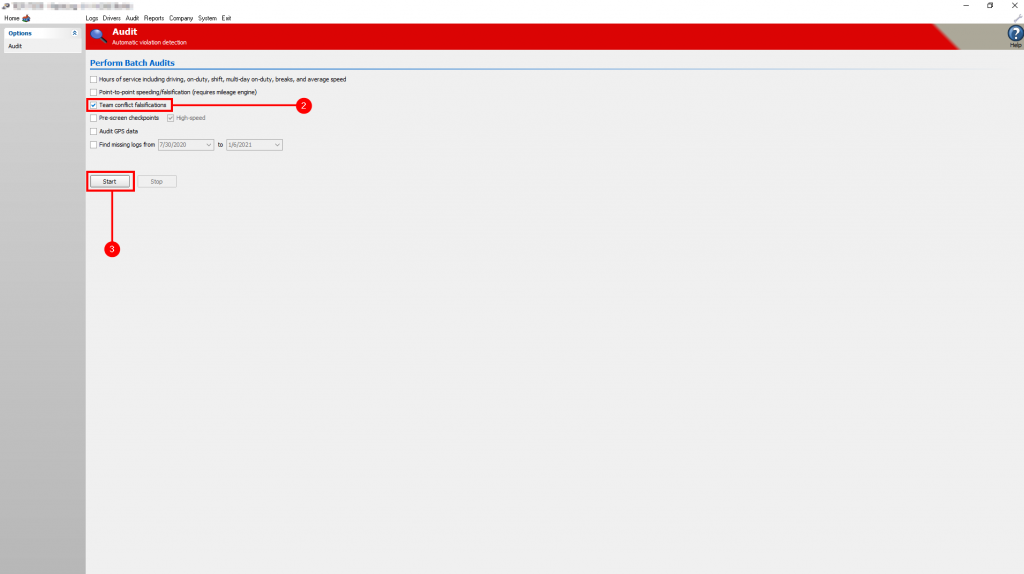
  2. Check the box next to “Team conflict falsifications”

  3. Click “Start”

Instructions with Images:

Step 1: From the home scree, click ‘Logs‘

Step 2: Find one of the drivers that will be a part of the team.
Step 3: Under the duty status totals, you will see a small ‘Drop Down Menu’ button’. Click it.

Step 4: On the new menu, you will see 4 time bars show up. The third bar down on this menu will show a truck icon. Click on the truck icon at Midnight.

Step 5: Click ‘Other’

Step 6: Enter the Truck Number of the team drivers. Click “Ok”. Now switch to the other team driver and follow the same steps.

How to audit team conflict falsifications:

Step 1: From the Home screen, Click “Audit”

Step 2: Check the box next to “Team conflict falsifications”

Step 3: Click “Start“

How to Delete a Driver

Instructions with Images:

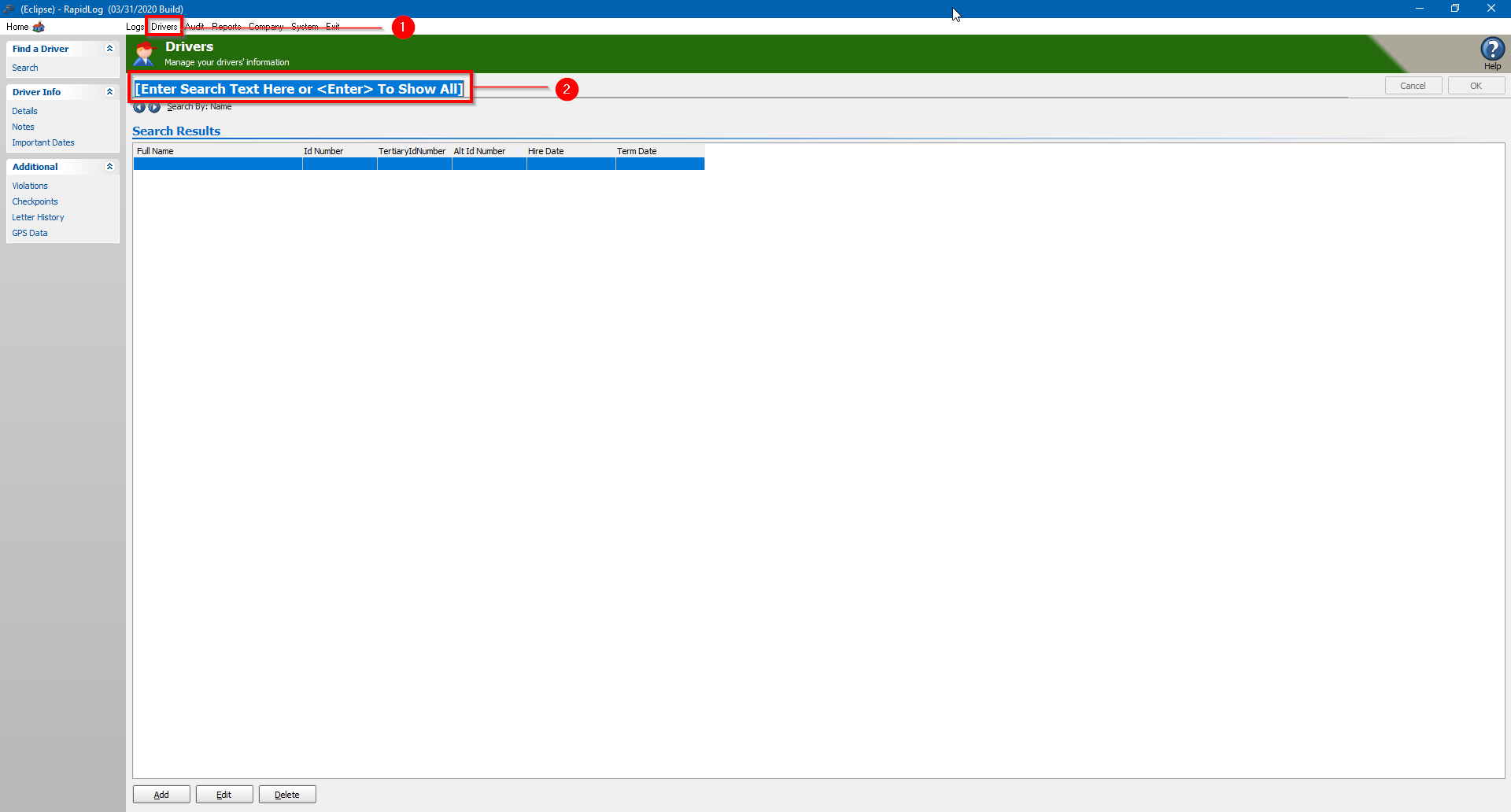
Step 1: Click on the ‘Driver’ page.

Step 2: Click in the ‘Search Bar’ and enter the drivers last name.


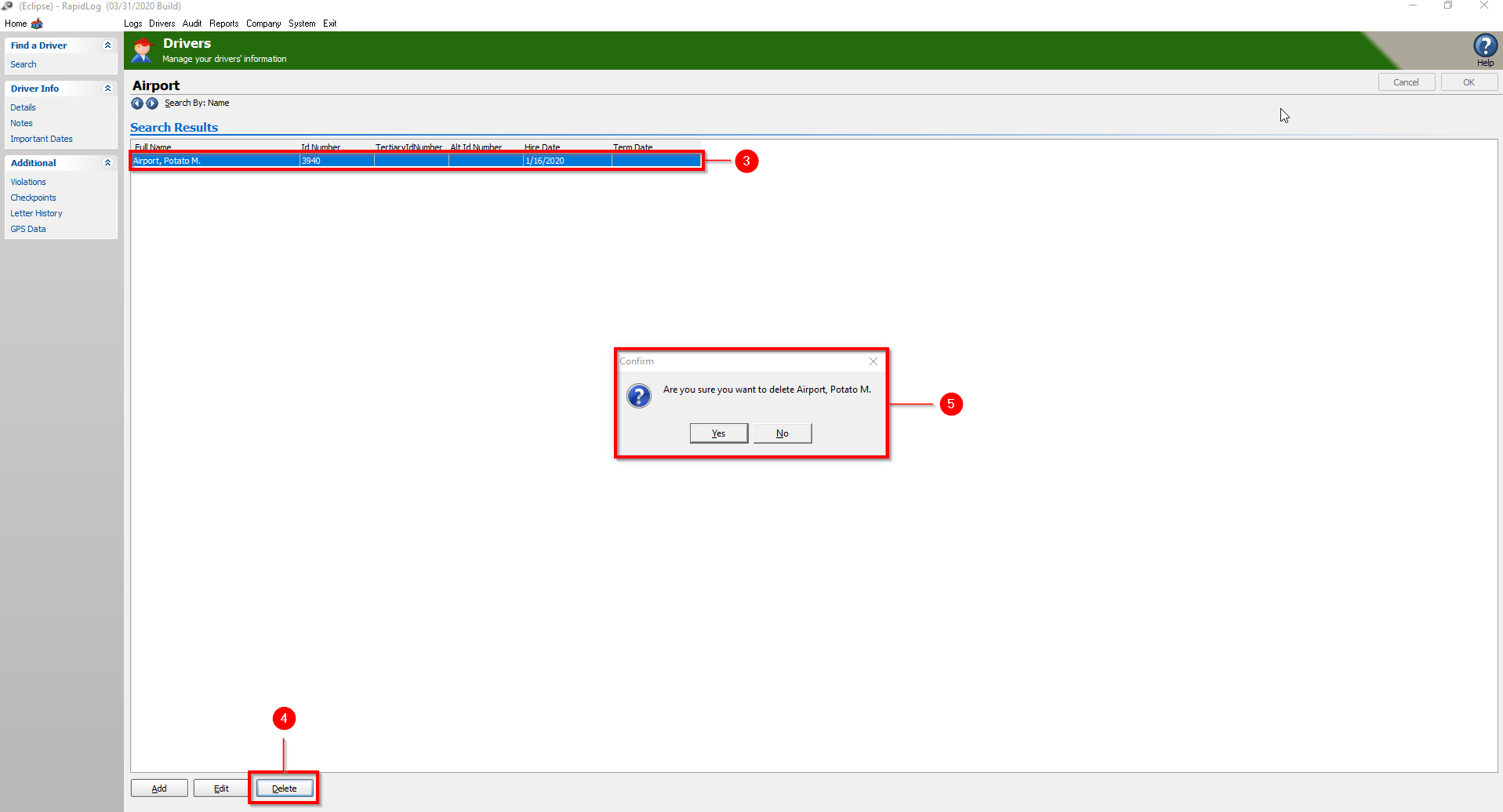
Step 3: Verify you have the correct driver selected.
Step 3: Click on the ‘Delete’ button.

Step 4: Click ‘Yes’ to confirm.

Driver Import – DrSync

Topic:

How Do I Import a Driver List Into RapidLog?

File Format:

The driver import file must be saved as a CSV file and all fields must be quoted.

If a field is not used designate the field with a double quote “” (See below for all available fields).

Here is an example of what the CSV file should look like:


Import File with ID Number, Last Name, First Name, Address, City, State, Zip, Employment Type, and Hire Date:

“”,”1337″,””,”White”,”Walter”,””,”3828 Piermont Dr”,”Albuquerque”,”NM”,”87111″,””,””,”F”,””,””,””,””,””,””,””,””,””,”01/18/2009″,””,””,””,””,””,””,””,””,””,””,””,””,””,””,””,””
“”,”420″,””,”Jesse”,”Pinkman”,””,”9809 Margo St”,”Albuquerque”,”NM”,”87104″,””,””,”P”,””,””,””,””,””,””,””,””,””,”03/14/2011″,””,””,””,””,””,””,””,””,””,””,””,””,””,””,””,””
“”,”911″,””,”Schrader”,”Hank”,””,”4901 Cumbre Del Sur Ct”,”Albuquerque”,”NM”,”87111″,””,””,”F”,””,””,””,””,””,””,””,””,””,”04/09/2015″,””,””,””,””,””,””,””,””,””,””,””,””,””,””,””,””

Download Template:

Instructions:

In this example my RapidLog setup will be like so:

  • RapidLog Program Directory = C:\Program Files (x86)\RapidLog
  • RapidLog Company Code = RLCOMPANY
  • CSV File to Import = driver.csv
  • Directory where the CSV file is saved = C:\temp
  1. Open CMD and change directory to your the RapidLog Program directory:
    1. cd “C:\Program Files (x86)\RapidLog”
  2. Run Driver Sync program (DrSync.exe) against the company and file you want to import and how to match the records. This example shows matching by driver ID:
    1. DrSync.exe RLCOMPANY “C:\temp\driver.csv” ID
  3. After you execute the command you should see the letters I or U echoed. I stands for Imported U stands for Updated.
    1. On a brand new company if you see the letter u that means you have a duplicate driver ID.  Find the duplicate and make the correction to your import file and re-import.
    2. If you are running this file to update existing drivers note that the import will take the information from your driver file and overwrite any existing data.
  4. After you have run the import open RapidLog and go to the Drivers page to verify the data that was imported looks good.

Fields: