How to Export a Report from Rapidlog

Topic:

How to Export a Report from Rapidlog

Instructions:

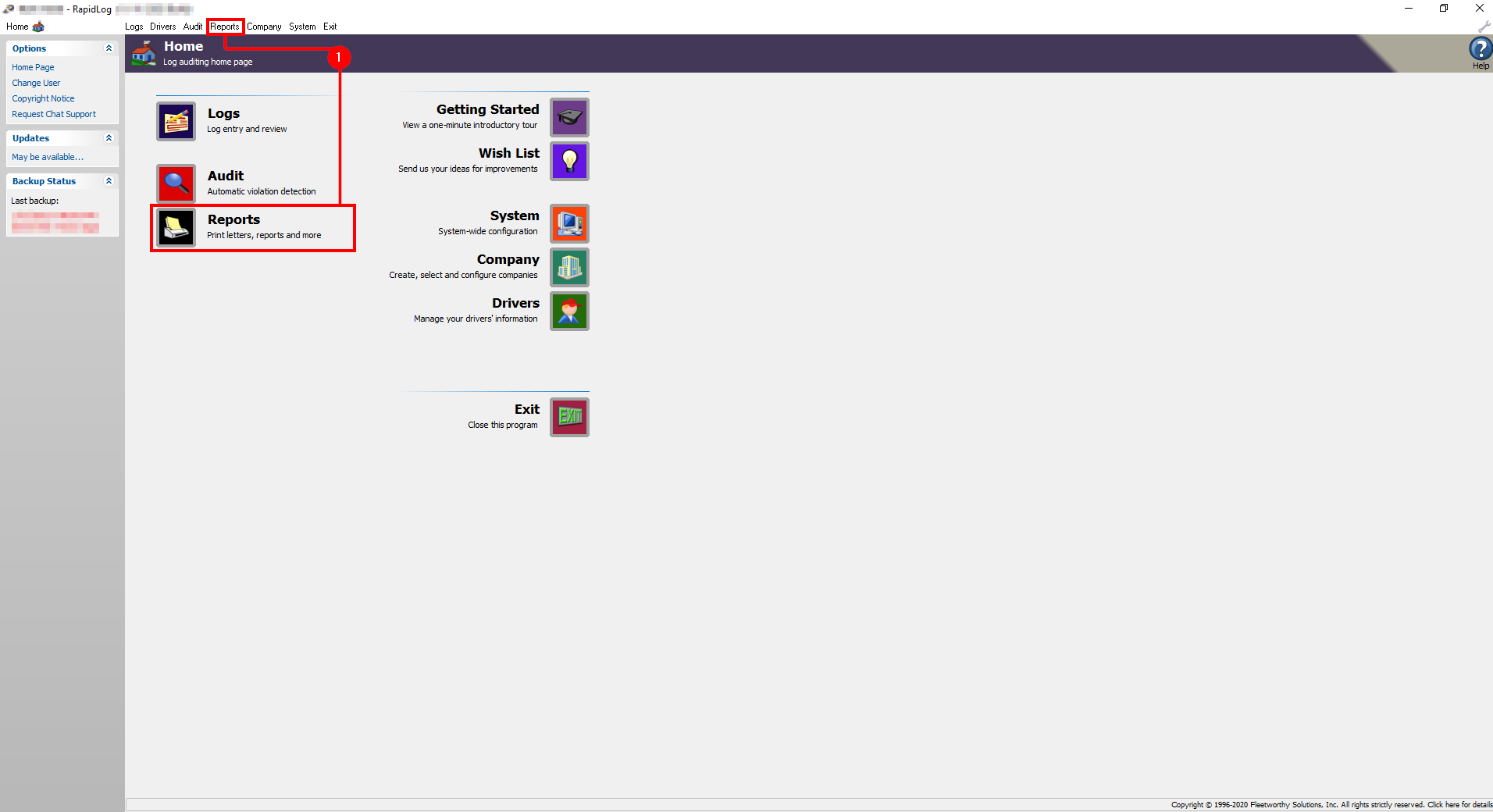
  1. Open RapidLog, click on “Reports”

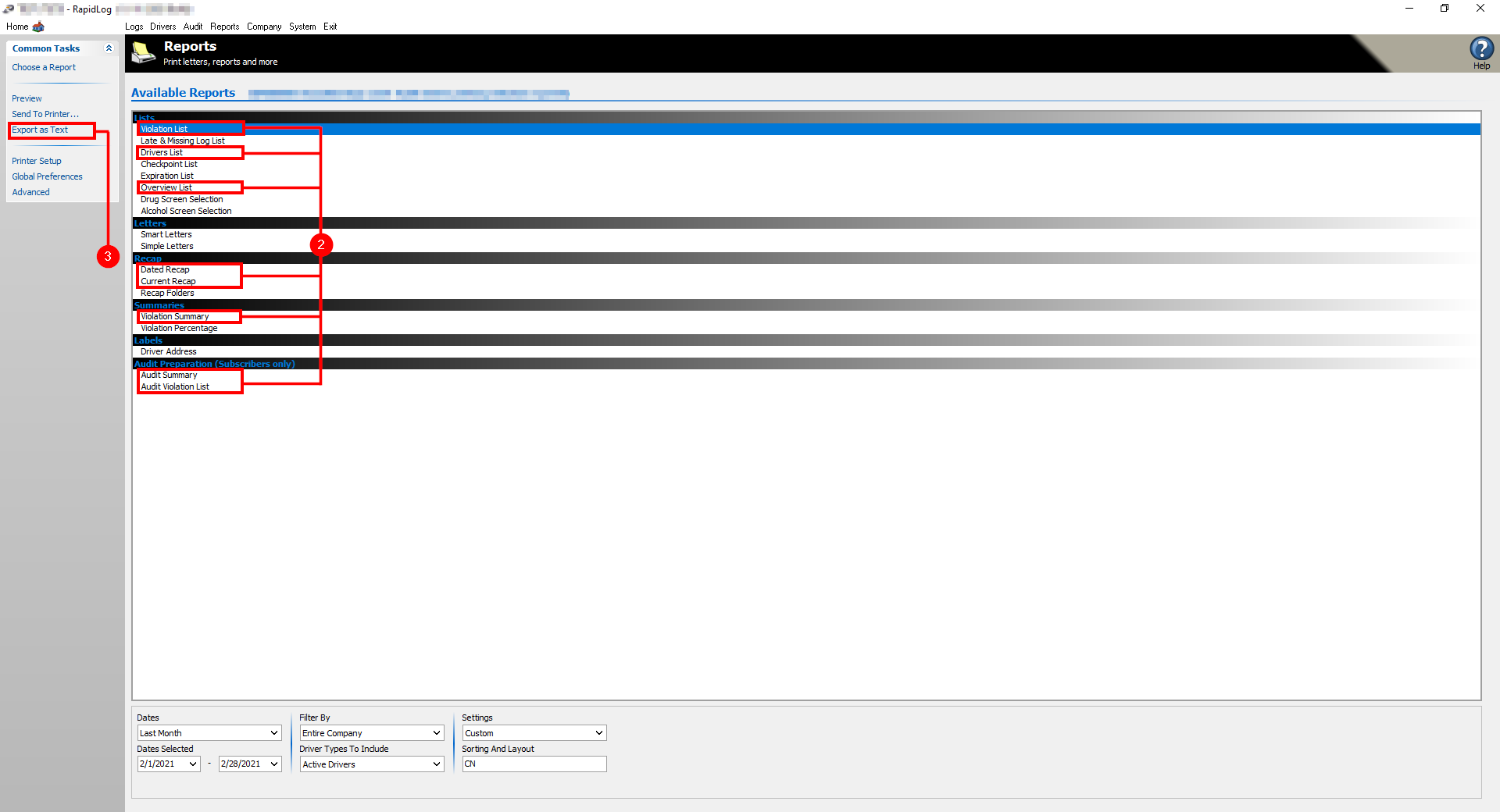
  2. Select the report you wish to export (Note – only the reports listed below are able to be exported)

    Violation list
    Driver List
    Overview List
    Dated Recap
    Current Recap
    Violation Summary
    Audit Summary
    Audit Violation List
  3. Click “Export as Text”

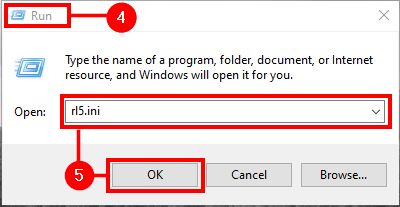
  4. From the start menu, open the “Run” Program

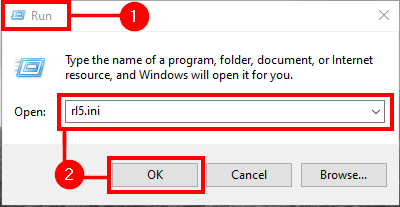
  5. Type in “Rl5.ini” to open the Rl5.ini notepad document, click “OK”

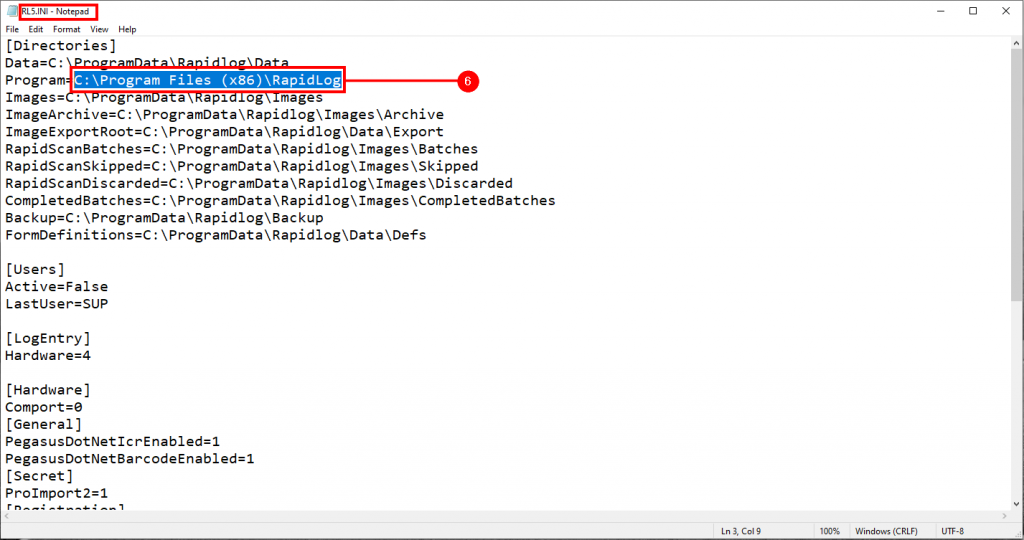
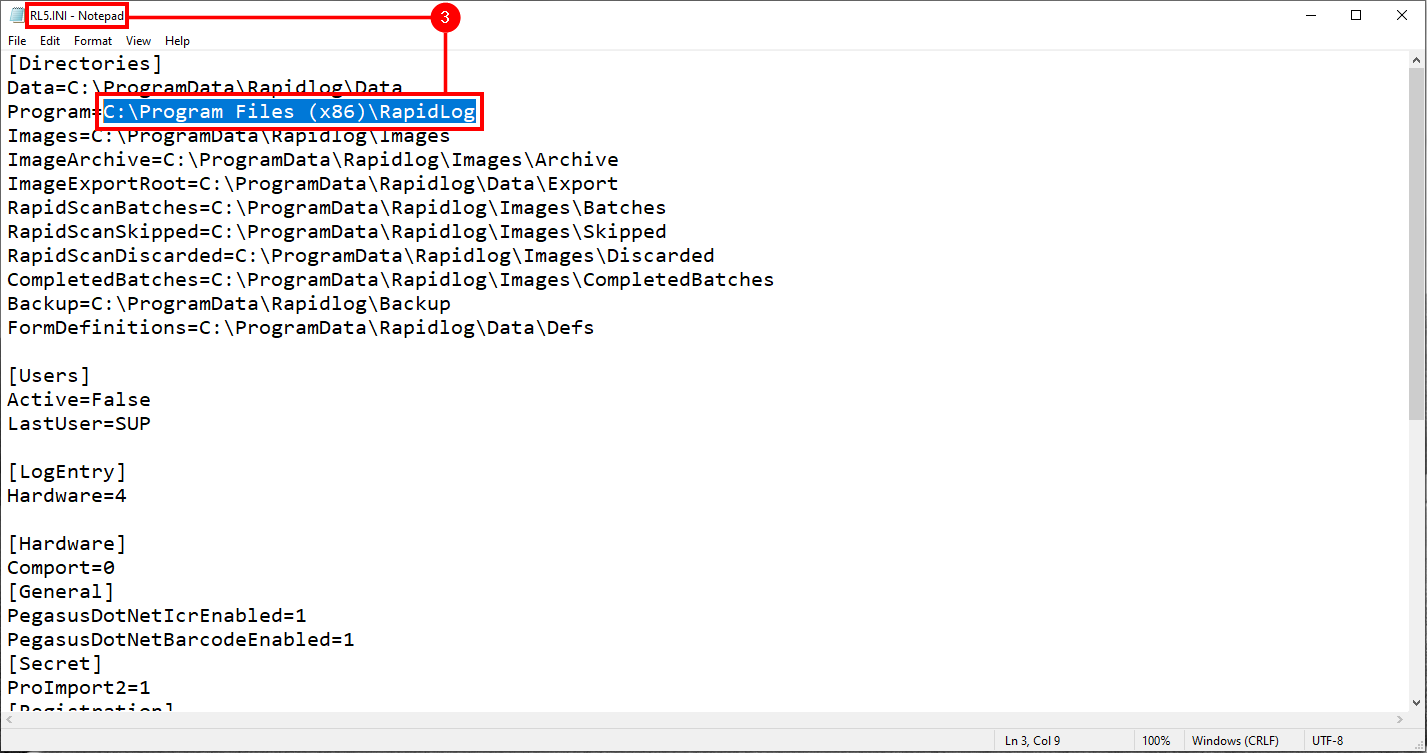
  6. From the Rl5.ini text document, copy the text line following the word “Data”

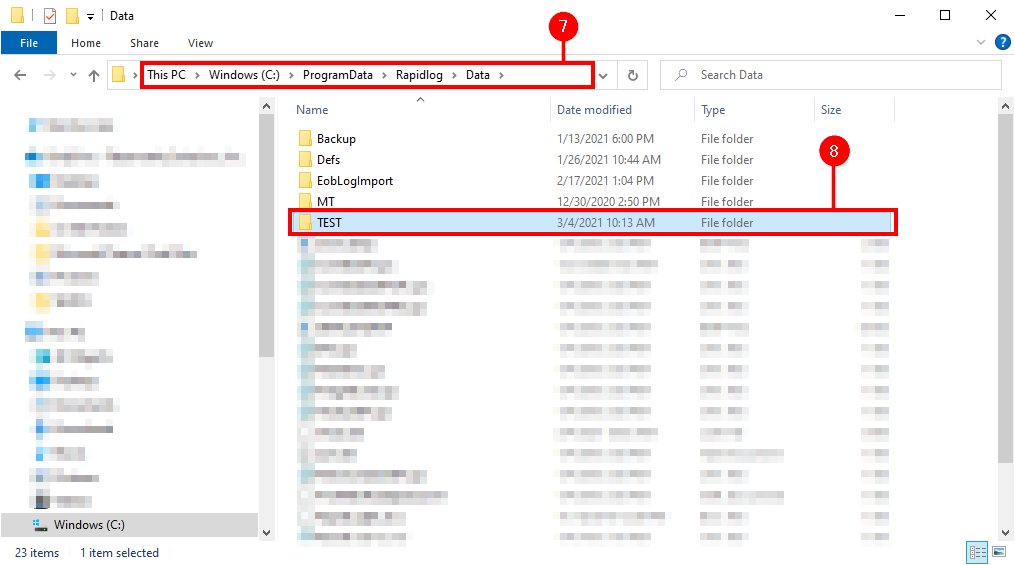
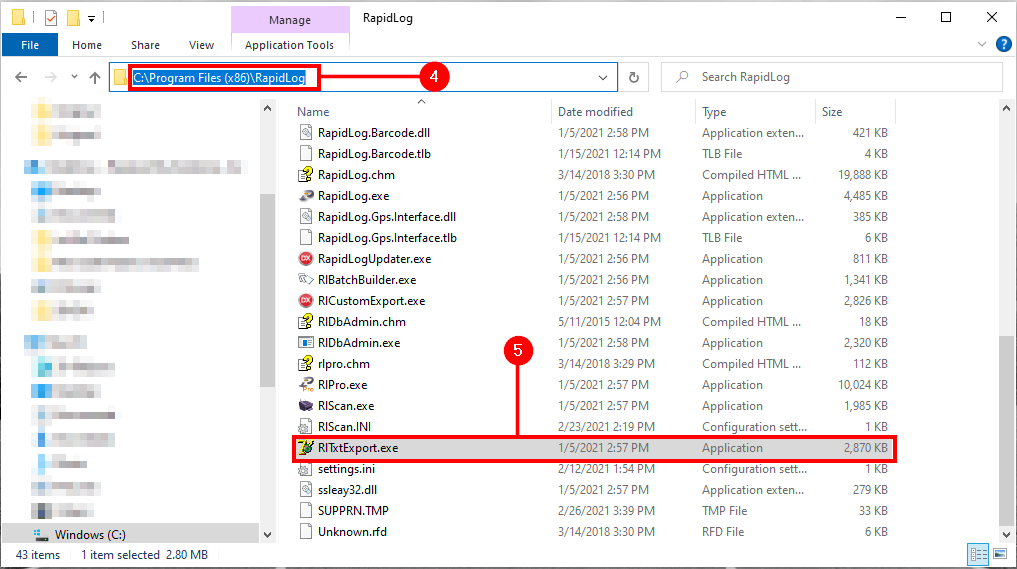
  7. Open File Explorer, paste in what you copied from the Rl5.ini into the text field to take you to the data file of RapidLog.

  8. Click on the folder of the company name where you exported the data from in RapidLog (Labeled TEST in the examples below)

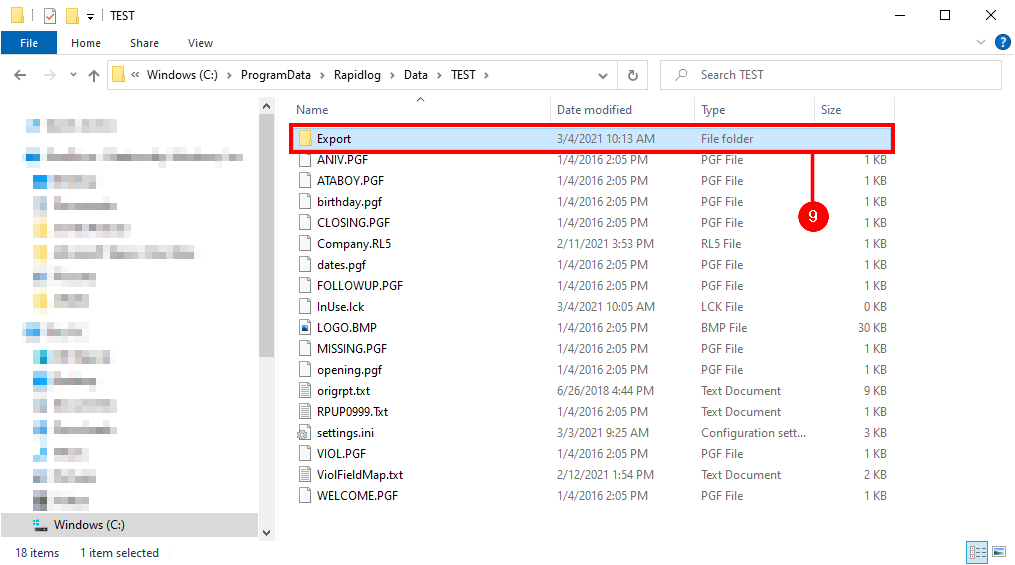
  9. Click on the “Export” folder

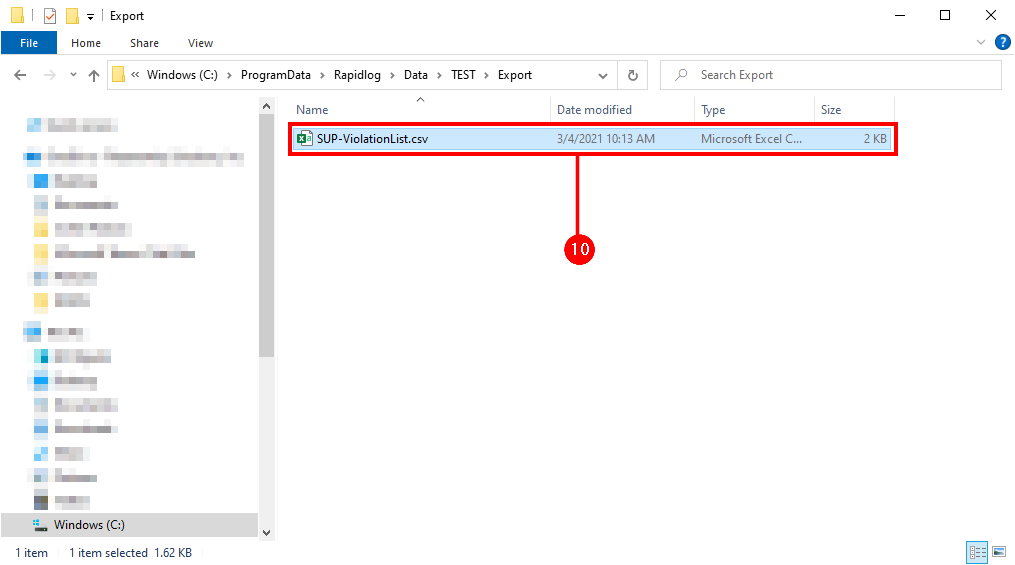
  10. Here is your Exported data

Instructions with Images:

Step 1: Open RapidLog, click on “Reports”

Step 2:

  • Select the report you wish to export (Note – only the reports listed below are able to be exported)

    Violation list
    Driver List
    Overview List
    Dated Recap
    Current Recap
    Violation Summary
    Audit Summary
    Audit Violation List


Step 3: Click “Export as Text”


Step 4: From the start menu, open the “Run” Program 

Step 5: Type in “Rl5.ini” to open the Rl5.ini notepad document, click “OK”

Step 6: From the Rl5.ini text document, copy the text line following the word “Data”

Step 7: Open File Explorer, paste in what you copied from the Rl5.ini into the text field to take you to the data file of RapidLog. 

Step 8: Click on the folder of the company name where you exported the data from in RapidLog (Labeled TEST in the examples below)


Step 9: Click on the “Export” folder

Step 10: Here is your Exported data

How to use RLTxtExporter

Topic:

RlTxtExporter can dump RapidLog data into text files that can be imported into another database.

Instructions:

  1. From your start menu, do a search for “Run”

  2. Type “Rl5.ini” into the text box. Click “OK”. This will bring up the Rl5.ini file in notepad.

  3. In the Rl5.ini notepad text document, copy the file location labeled “Program”

  4. Open File Explorer, paste the file location into the text field.

  5. Open “RlTxtExport.exe”

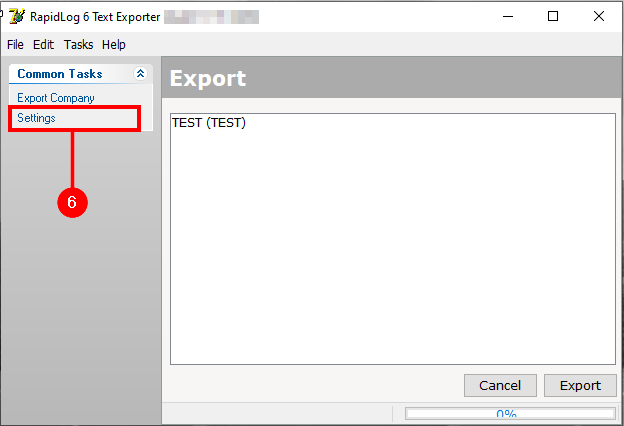
  6. Click “Settings”

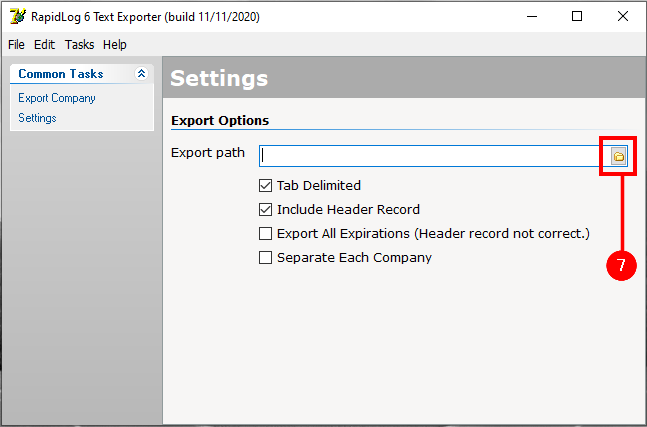
  7. On the “Export Path” text field, click the folder icon on the right

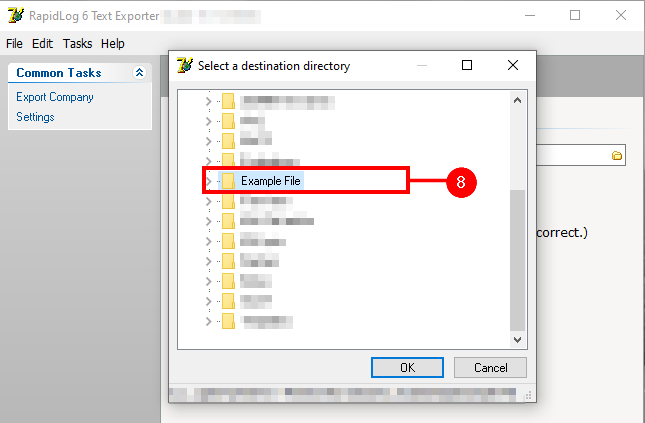
  8. Choose an export path (Meaning the location the files you export will show up on your computer) Click “OK”

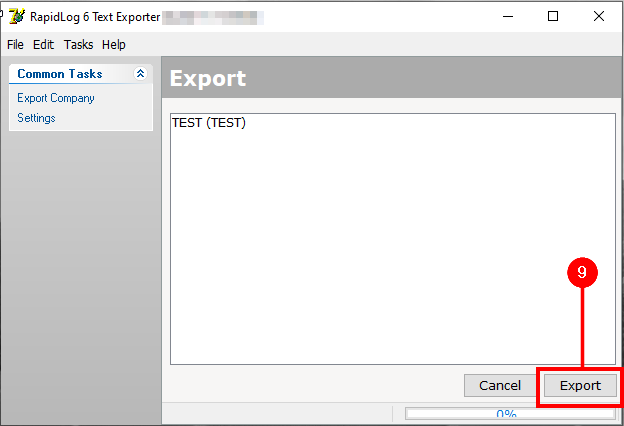
  9. Click “Export Company” on the left, then click “Export” on the bottom right.

  10. Your files will export to the desired location.

Instructions with Images:

Step 1: From your start menu, do a search for “Run”

Step 2: Type “Rl5.ini” into the text box. Click “OK”. This will bring up the Rl5.ini file in notepad.

Step 3: In the Rl5.ini notepad text document, copy the file location labeled “Program”

Step 4: Open File Explorer, paste the file location into the text field.

Step 5: Open “RlTxtExport.exe”

Step 6: Click “Settings”

Step 7: On the “Export Path” text field, click the folder icon on the right

Step 8: Choose an export path (Meaning the location the files you export will show up on your computer) Click “OK”

Step 9: Click “Export Company” on the left, then click “Export” on the bottom right.

Step 10: Your files will export to the desired location.

How to create custom violations

Topic:

How to create custom violations.

Instructions:

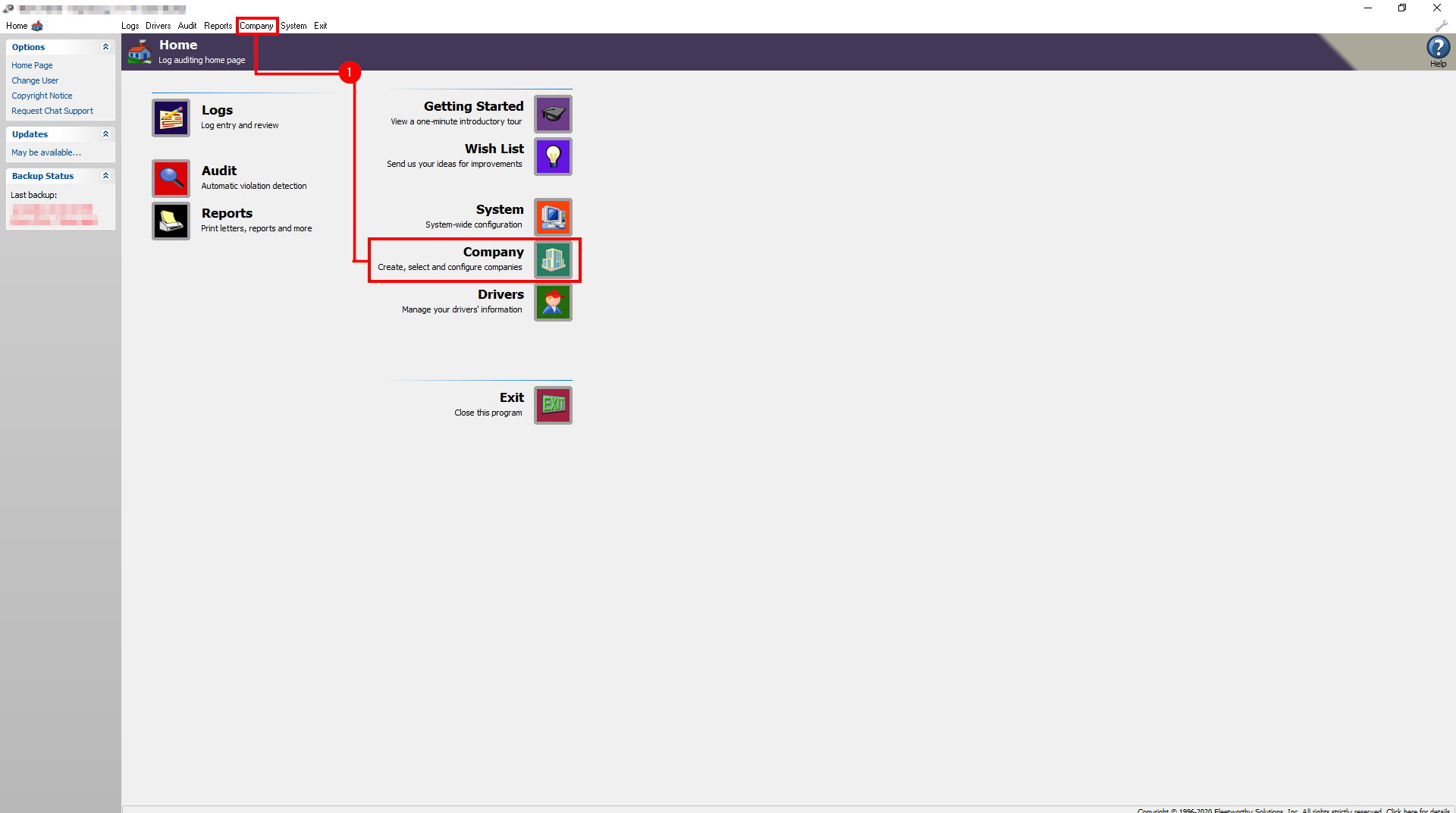
  1. From the home page of RapidLog, click “Company”

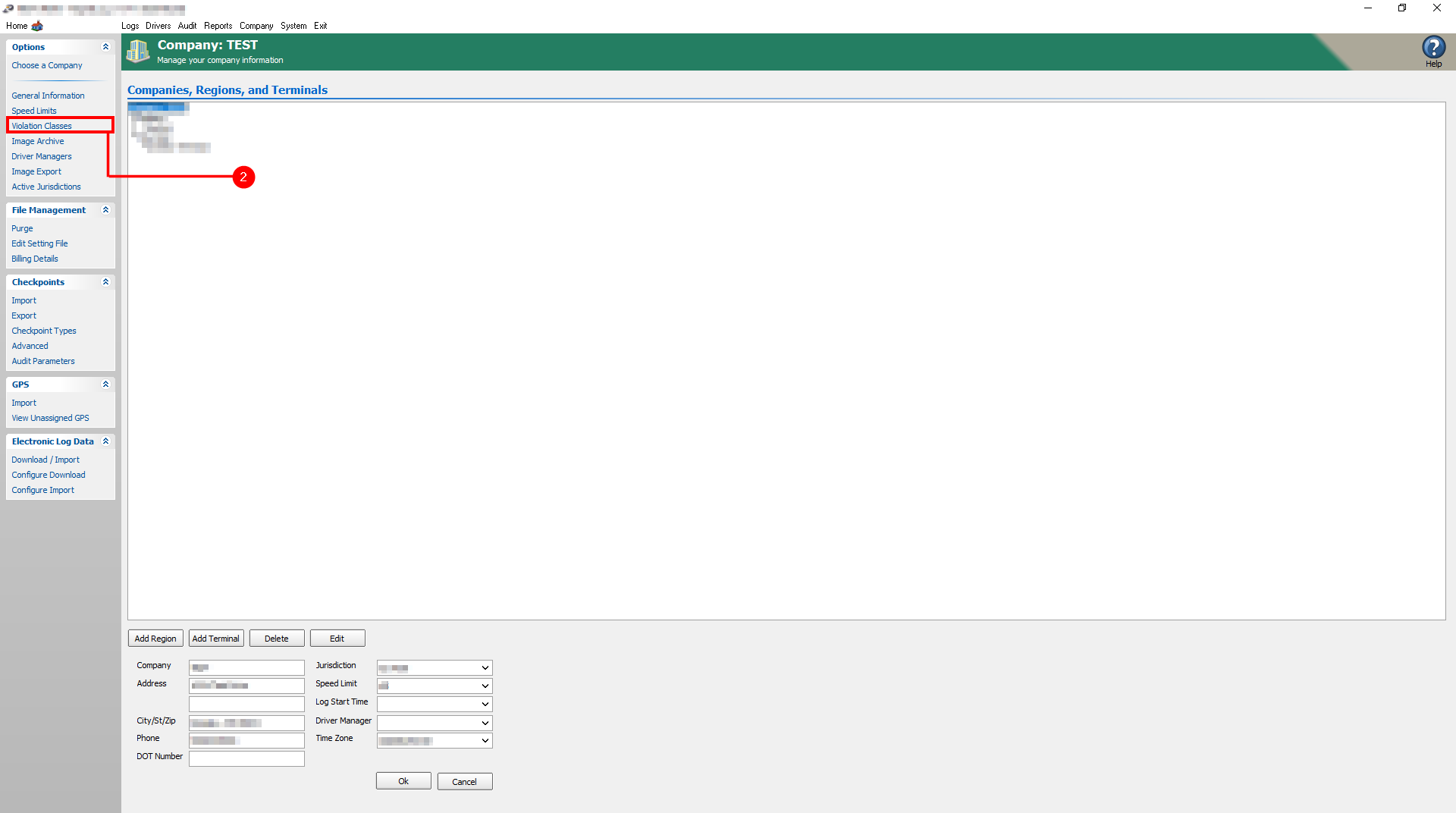
  2. Click “Violation Classes” from the left menu

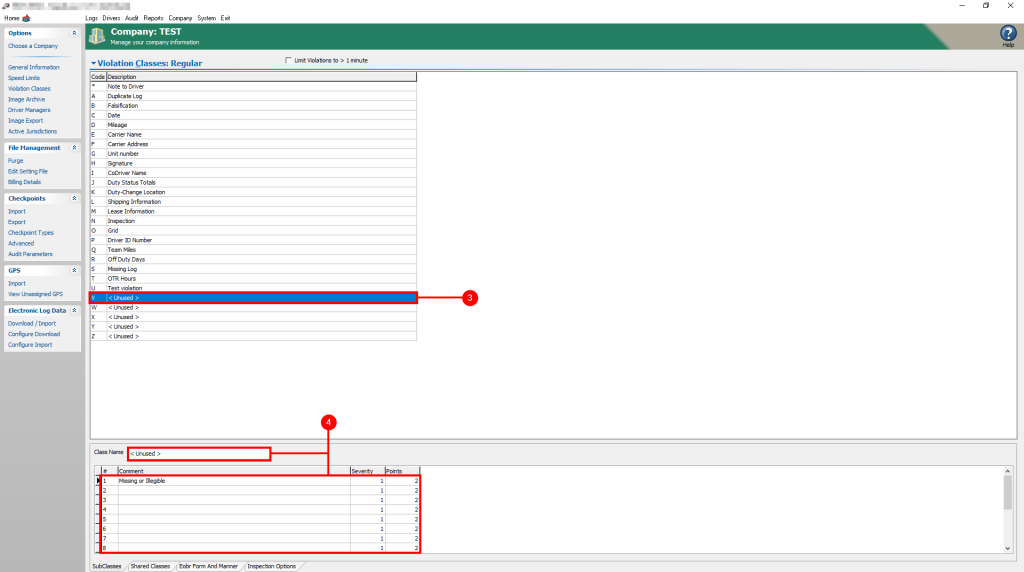
  3. In the ‘Violation Classes: Regular’ Table List, highlight the field you wish to edit

        a. You can choose to edit the A-Z current violation list or edit the <unused> sections to be the new violations.

  4. Rename the the violation in the “Class Name” field.

        a. You can choose to edit the comment that the violation will display under the “Comment” section.

        b. You can also add up to 9 individual comments for the new violation.

        c. You can assign these comments to the violation by right clicking the violation and selecting the comment that was entered.

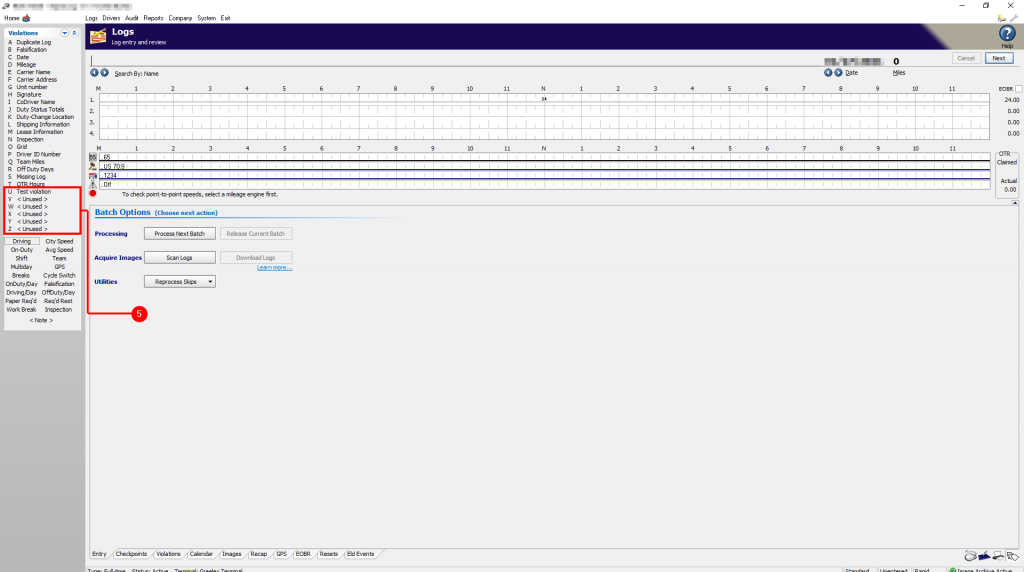
  5. After the edits have been made, close and re-open RapidLog. Now you’ll be able to assign the violation manually when processing in either Rapidlog Lite or Rapidlog Pro.

Instructions with Images:

Step 1: From the home page of RapidLog, click “Company”

Step 2: Click “Violation Classes” from the left menu

Step 3: In the ‘Violation Classes: Regular’ Table List, highlight the field you wish to edit

             a. You can choose to edit the A-Z current violation list or edit the <unused> sections to be the new violations.

Step 4: Rename the the violation in the “Class Name” field.

              a. You can choose to edit the comment that the violation will display under the “Comment” section.

              b. You can also add up to 9 individual comments for the new violation.

                     i. You can assign these comments to the violation by right clicking the violation and selecting the comment that was entered.


Step 5: After the edits have been made, close and re-open RapidLog. Now you’ll be able to assign the violation manually when processing in either Rapidlog Lite or Rapidlog Pro.

How to add and audit team drivers

Topic:

How to add and audit team drivers

Instructions:

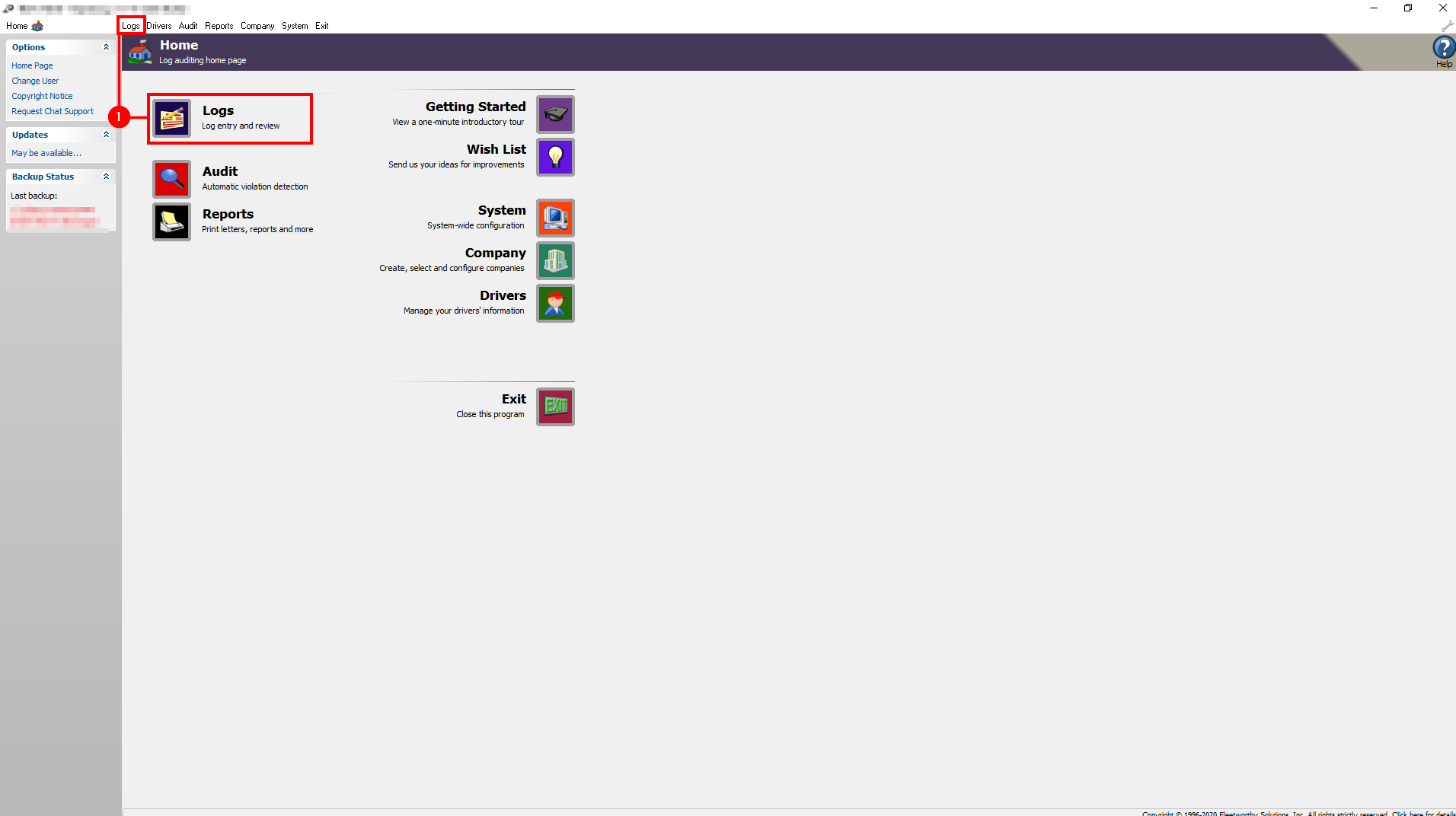
  1. From the home screen, click “Logs”

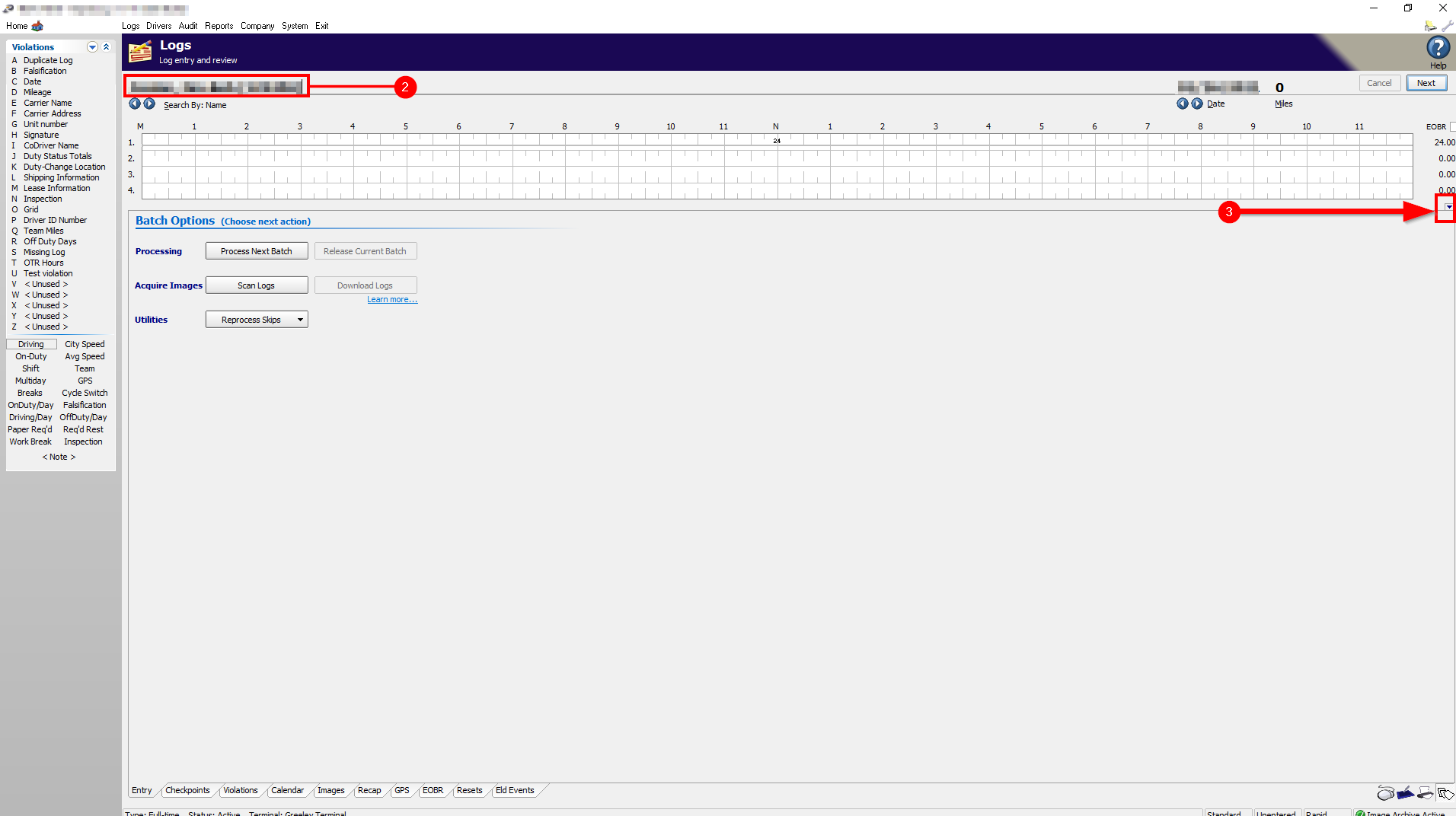
  2. Find one of the drivers that will be a part of the Team.

  3. Under the duty status totals, you will see a small “Drop Down Menu” button. Click it.

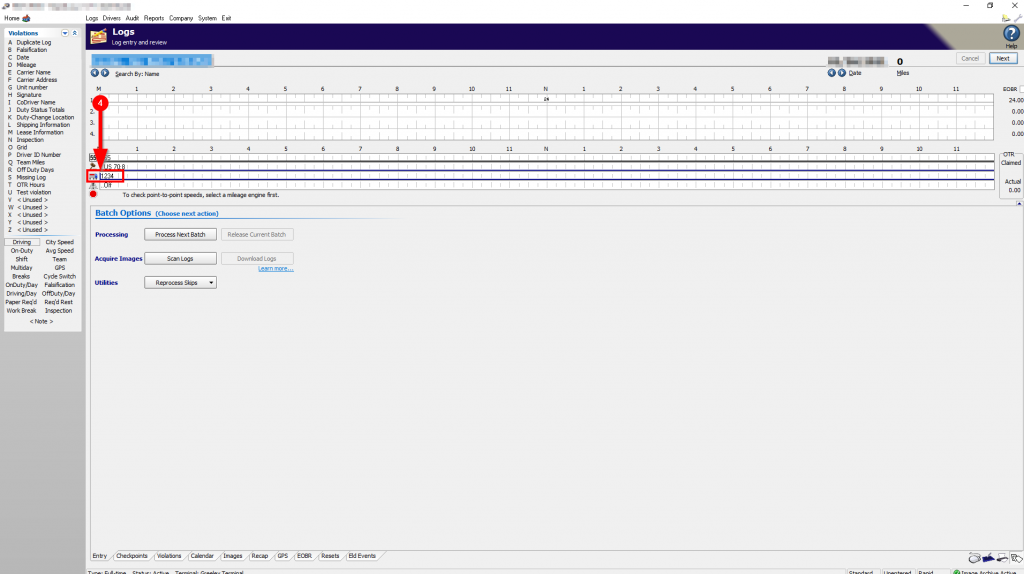
  4. On the new menu, you will see 4 time bars show up. The third bar down on this menu will show a Truck icon. Click on the truck icon at 0 (Or the midnight marker)

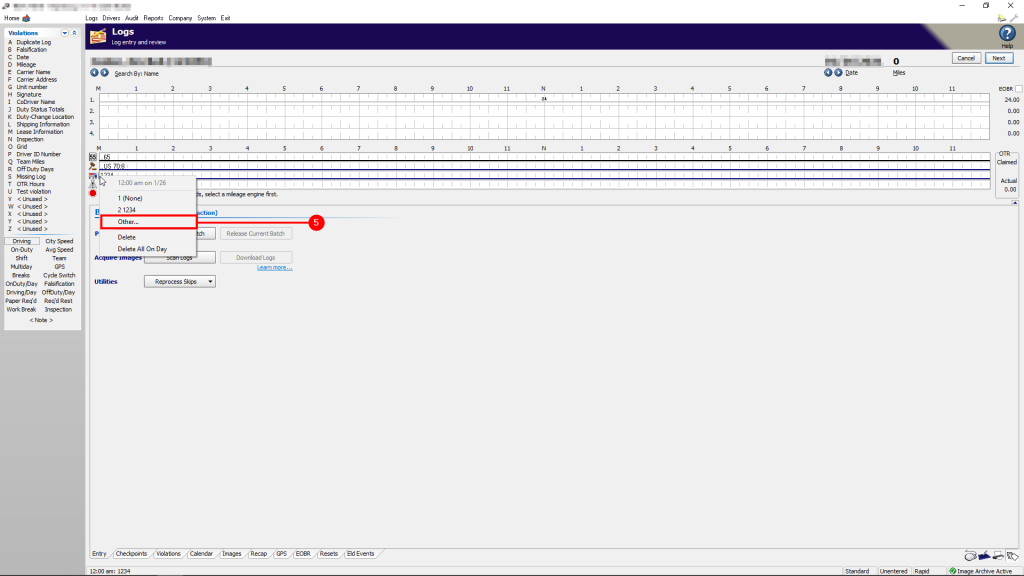
  5. Click “Other”

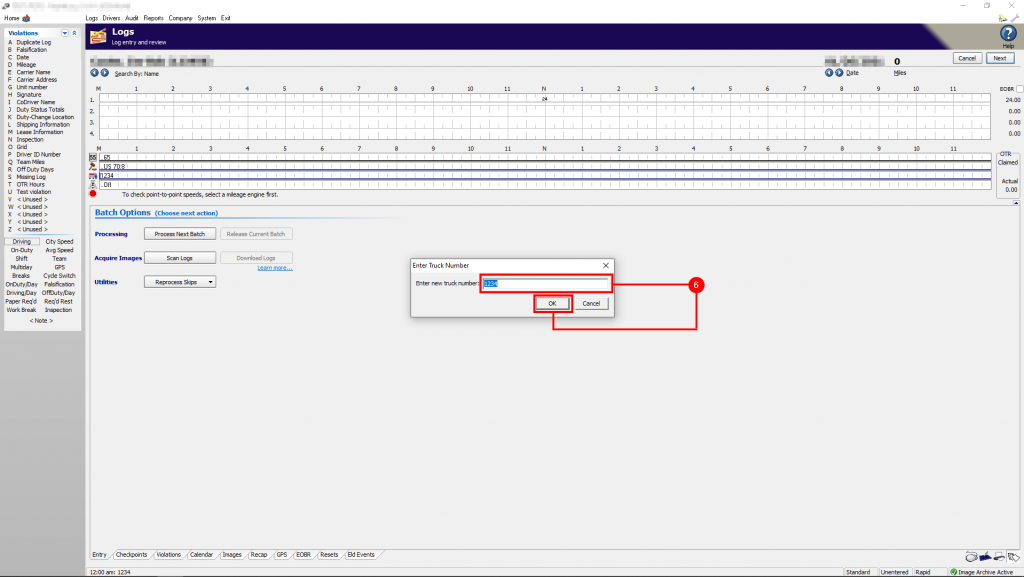
  6. Enter the Truck Number of the second member of the Team. Click “Ok”

To Audit Team Conflict Falsifications

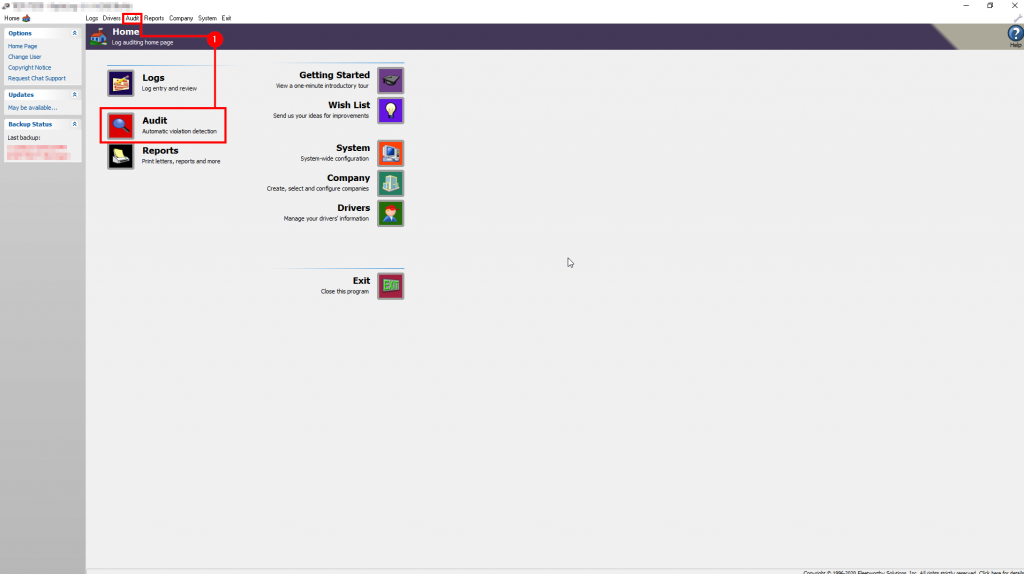
  1. From the Home screen, Click “Audit”

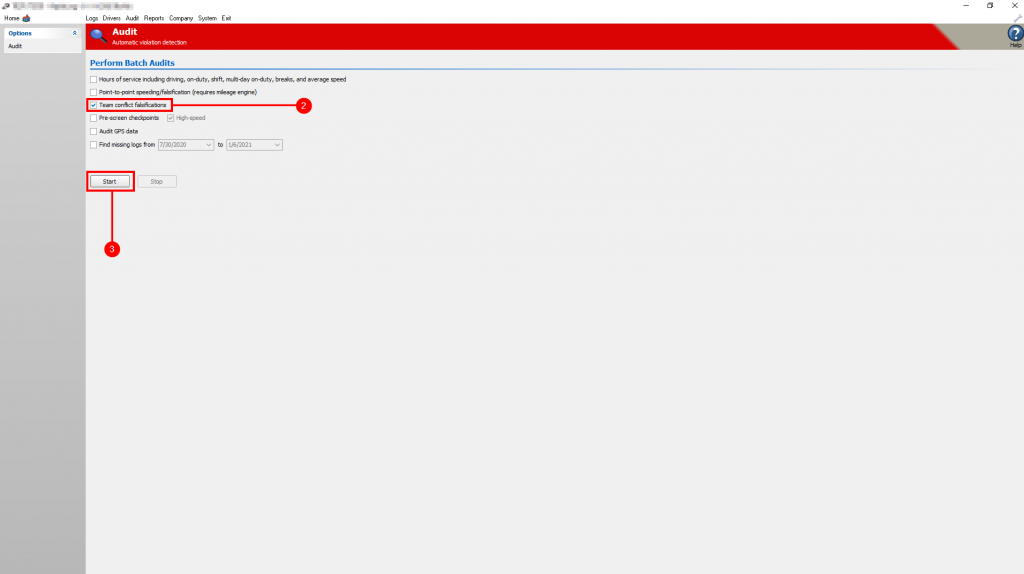
  2. Check the box next to “Team conflict falsifications”

  3. Click “Start”

Instructions with Images:

Step 1: From the home scree, click ‘Logs‘

Step 2: Find one of the drivers that will be a part of the team.
Step 3: Under the duty status totals, you will see a small ‘Drop Down Menu’ button’. Click it.

Step 4: On the new menu, you will see 4 time bars show up. The third bar down on this menu will show a truck icon. Click on the truck icon at Midnight.

Step 5: Click ‘Other’

Step 6: Enter the Truck Number of the team drivers. Click “Ok”. Now switch to the other team driver and follow the same steps.

How to audit team conflict falsifications:

Step 1: From the Home screen, Click “Audit”

Step 2: Check the box next to “Team conflict falsifications”

Step 3: Click “Start“

How to update Rapidlog (Self-hosted)

Topic:

How to update Rapidlog (Self-hosted)

Instructions:

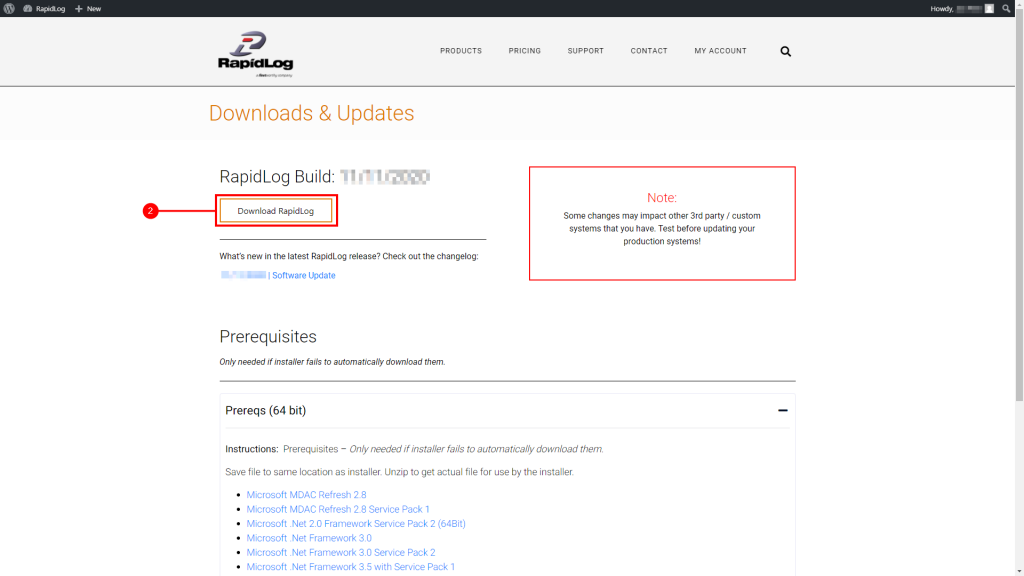
  1. Click this link: https://www.rapidlog.com/support/downloads-updates/ (Note: You will need to be logged into your account to access the download page)

  2. Click on “Download RapidLog”

  3. After the download finishes, run the installer.

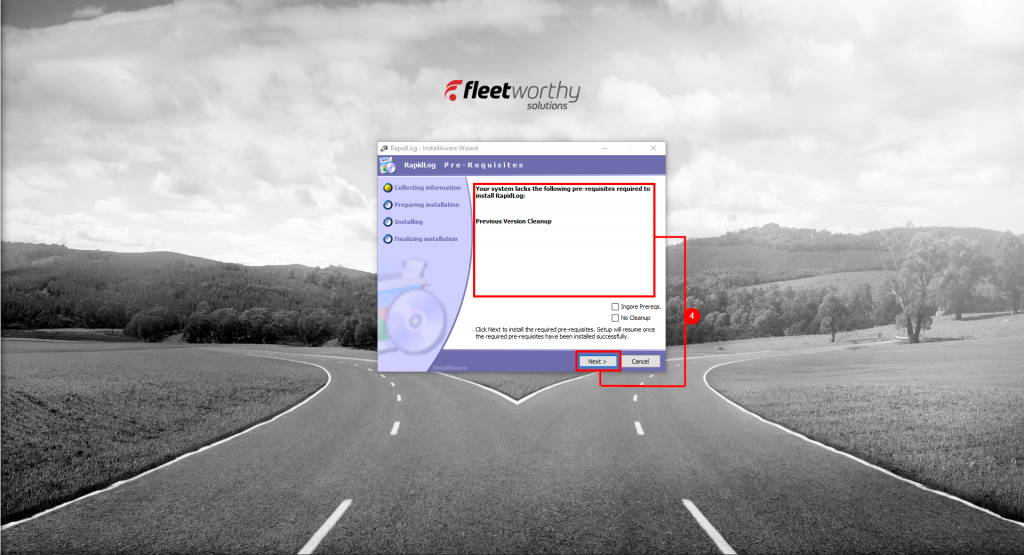
  4. This screen will list the pre-requisites required to install RapidLog. Click “Next”.

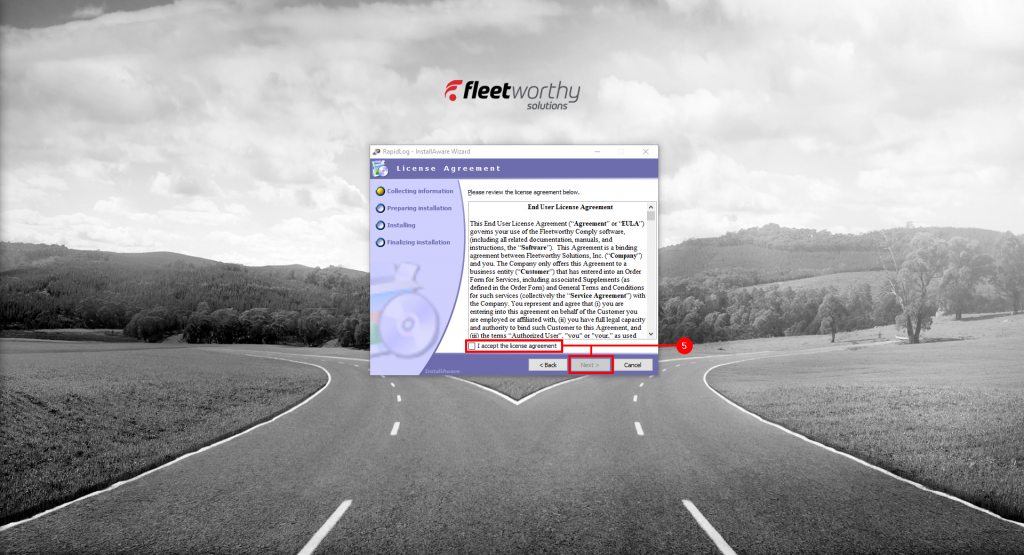
  5. Accept the terms of the EULA, Click “Next”

  6. Click “Next” on the following screen

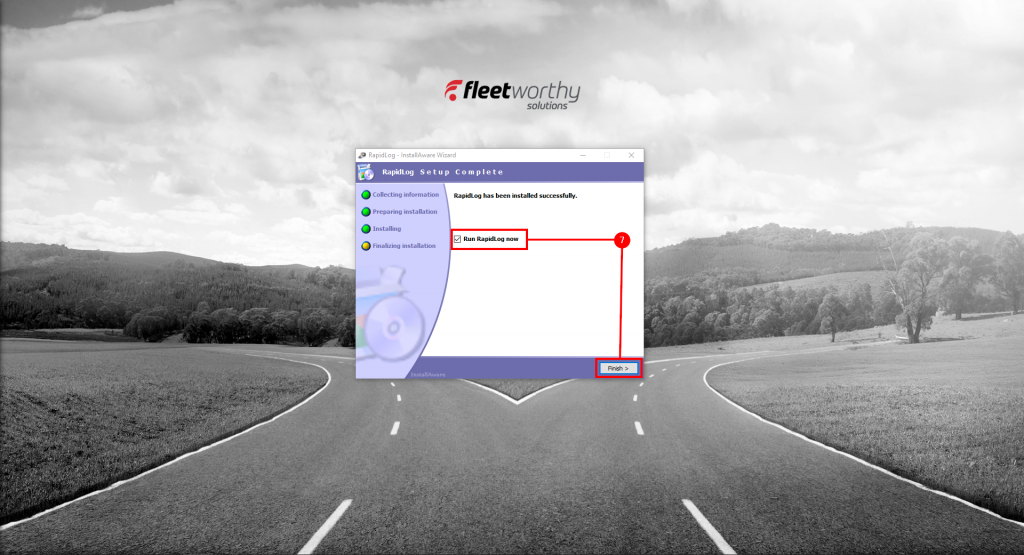
  7. Click “Finish” additionally, you can choose to run RapidLog immediately if you choose

How to Delete a Driver

Instructions with Images:

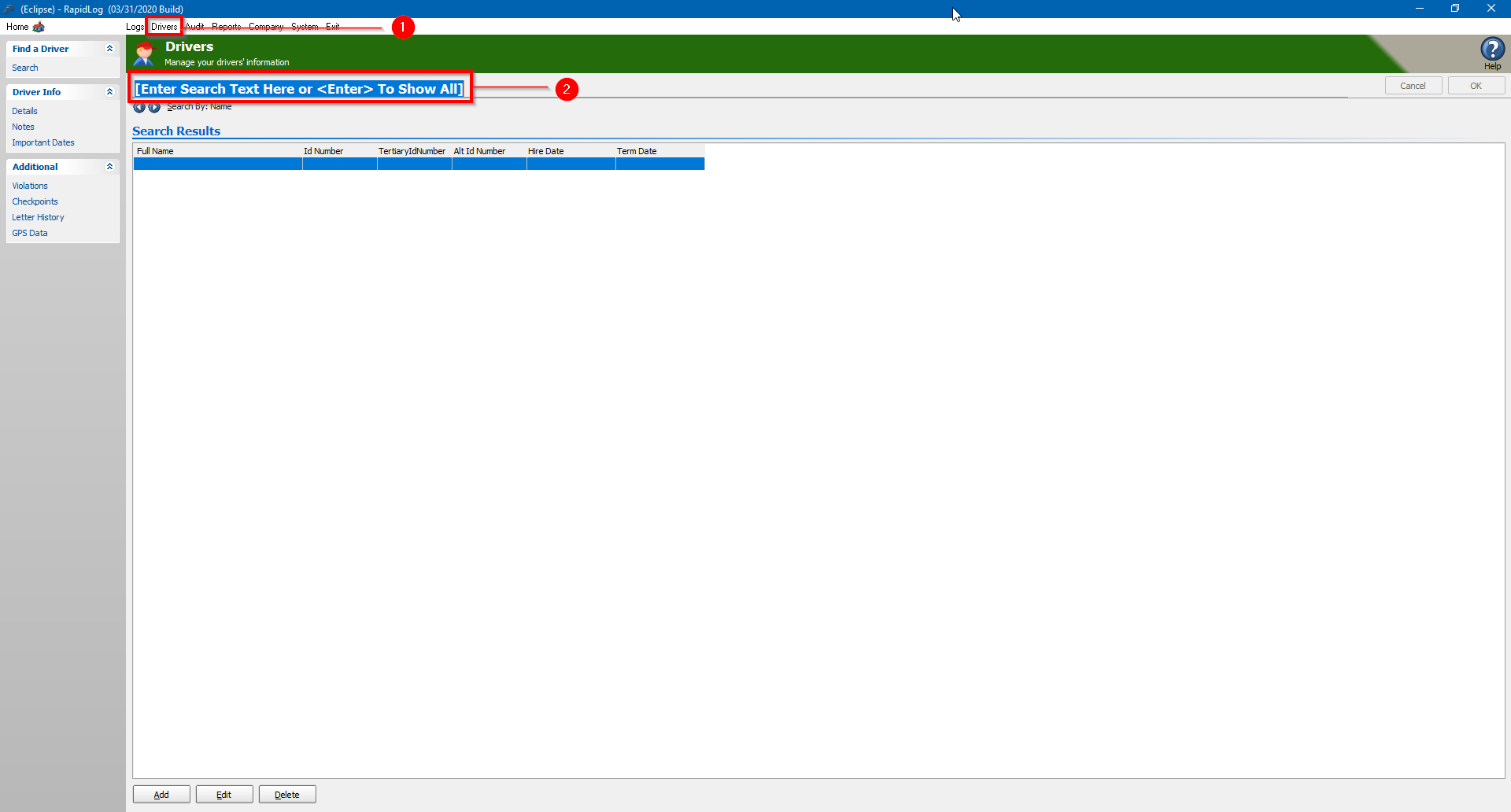
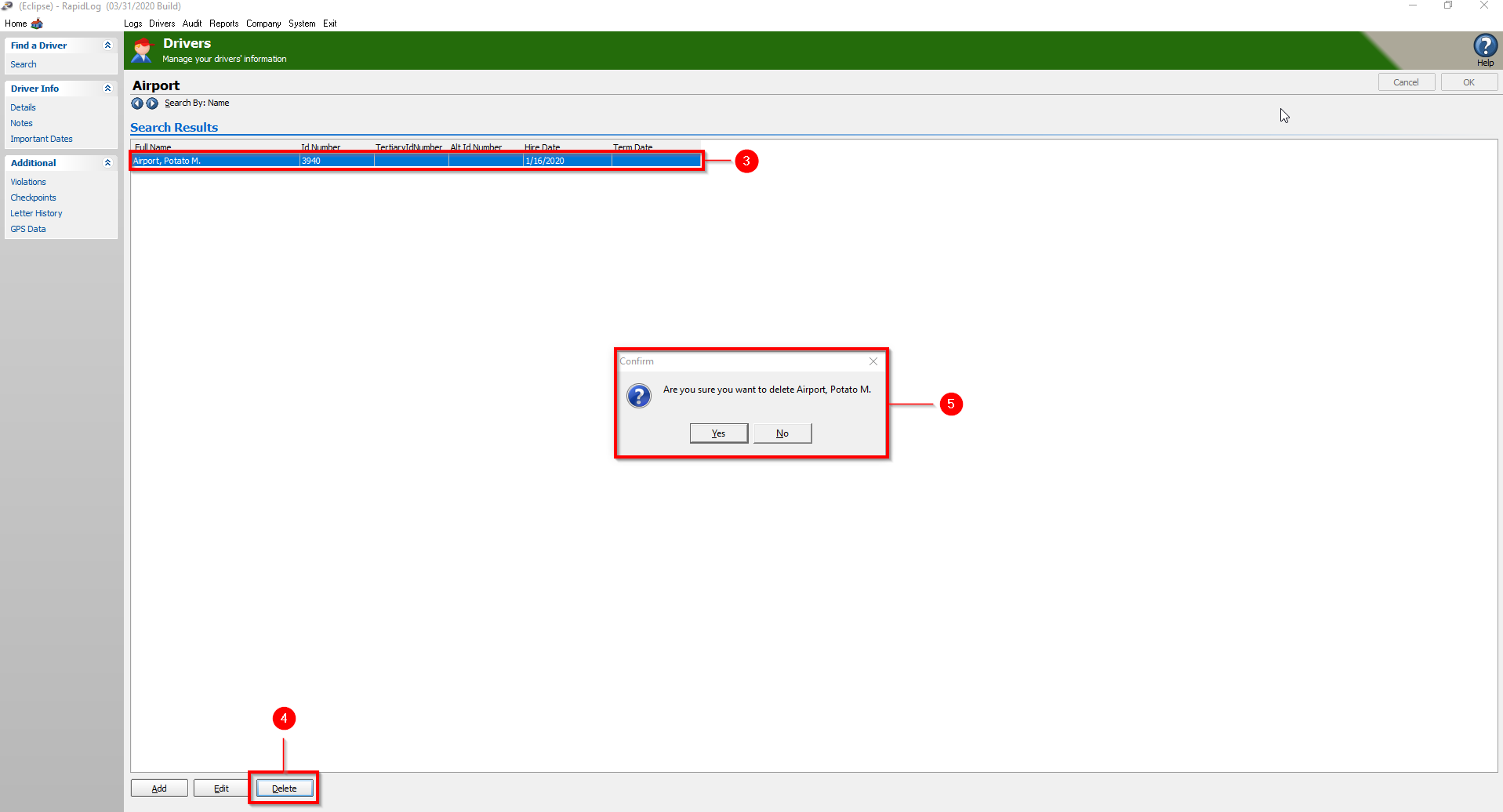
Step 1: Click on the ‘Driver’ page.

Step 2: Click in the ‘Search Bar’ and enter the drivers last name.


Step 3: Verify you have the correct driver selected.
Step 3: Click on the ‘Delete’ button.

Step 4: Click ‘Yes’ to confirm.

Select ELD Provider

RapidLog will also integrate with the following ELD providers: 

  • AssetWorks
  • Assured Techmatics
  • Asuga
  • Coretex
  • ERoad
  • Fleethunt
  • Foward Thinking Systems
  • GFI Systems
  • Hutch FMS
  • ISAAC
  • Motive
  • Platform Science
  • Tenna
  • Xata Turnpike

Supported Interfaces

RapidLog Works in an Interconnected World

Need More?

Request Additional Integrations

ELD Integration | Verizon Reveal

Topic:

How to Import Verizon Reveal Data Into RapidLog.

Verizon Reveal:

  • Arguments:
    • /provider (VerizonReveal)
    • /companycode (RLCompany Code)
    • /username (VerizonReveal username)
    • /password (VerizonReveal password)
    • /appid (VerizonReveal App ID. Instructions on how to obtain this below.)
    • /driverid (Driver ID of a specific driver. Should be used with /from and /to flags)
    • /from (Date format yyyy-mm-dd)
    • /to (Date format yyyy-mm-dd)
    • /daysback (defaults to 1)

  • Advanced Arguments:
    • /debug 1
      • /debug 1 enables the debug files to be saved during the download. The debug files are saved in a set of directories under the folder the EobrDownloader.exe file is running in. \HOSDebug\
    • /ui 1
      • /ui 1 will make the GUI show but it will be loaded with the options specified in the Command Line parameters.
    • /fm 1
      • /fm 1 specifies that it will process the Form and Manner violations. These are only available for some of the downloaders
    • /pause 1
      • /pause 1 will cause the EobrDownloader.exe to pause before closing so the output can be observed after running.

  • C:\Windows\RL5.ini Settings (optional):
    • [Directories]
      EobLogImportRoot=C:\ProgramData\RapidLog\Data (Tip: Match this to your Data= line)
    • Note: if this does not exist the downloads will go to \RapidLog\Data\EobLogImport\CompanyCode

  • Example BAT File for All Companies and Providers (prefered method):
    • “C:\Program Files (x86)\RapidLog\DownloadRunner.exe”
      “C:\Program Files (x86)\RapidLog\ForEachCompany.exe” RapidLog.exe [CompanyCode] -L RapidLogFormat
      “C:\Program Files (x86)\RapidLog\ForEachCompany.exe” RapidLog.exe [CompanyCode] -NewAudit HC -MI

  • Example BAT File for a Single Company and Provider:
    • “C:\Program Files (x86)\RapidLog\EobrDownloader.exe” /provider VerizonReveal /companycode MYRLCOMPANY /username VerizonRevealusername /password VerizonRevealpassword /appid VerizonRevealappid /daysback 8
      “C:\Program Files (x86)\RapidLog\RapidLog.exe” MYRLCOMPANY -L RapidLogFormat
      “C:\Program Files (x86)\RapidLog\RapidLog.exe” MYRLCOMPANY -NewAudit HC -MI

Obtaining the App ID:

Verizon Connect Reveal integration setup:
  1. Call Verizon’s customer care line.
  2. Request Account Integration which should send the case up to the App Dev group.
  3. Verizon’s App Dev team will then ok the integration and pass the details back down to Tier 1 support who will contact you with the details.  This usually takes 2 to 3 days.
  4. If this does not include a set of credentials for use by our downloader then request a new login/password pair for that.
  5. Provide RapidLog with the credentials so we can log in and create the needed App ID and register our app for that customer.
    1. The easiest way to do this is the start a Live Chat
    2. The App ID can be generated at: https://fim.us.fleetmatics.com/#/home/login
      1. Full instructions at: http://fim.us.fleetmatics.com/content/home/support/index.htm
That should be all that is needed for use to get the downloader configured. However, depending on the App Dev group at Verizon there may be more involved to get it working. You may have to contact Verizon after generating the App ID to get them to unlock the HOS data request.

Instructions:

  1. Add the credentials for the ELD provider on the Company->Configure Download Page in RapidLog.
  2. Edit the Directories section in the C:\Windows\rl5.ini file by adding EobLogImportRoot=Your Data folder.
    • Example: EobLogImportRoot=C:\ProgramData\RapidLog\Data
  3. Open Notepad and setup the download, import and audit.  Save that file as a .bat file.
  4. Open Task Scheduler and schedule the .bat file to run once or twice daily.

ELD Integration | Pedigree

Topic:

How to Import Pedigree ELD Data Into RapidLog.

Pedigree:

  • Arguments:
    • /provider (Pedigree)
    • /companycode (RLCompany Code)
    • /username (Pedigree username)
    • /password (Pedigree password)
    • /driverid (Driver ID of a specific driver. Should be used with /from and /to flags)
    • /from (Date format yyyy-mm-dd)
    • /to (Date format yyyy-mm-dd)
    • /daysback (defaults to 1)

  • Advanced Arguments:
    • /debug 1
      • /debug 1 enables the debug files to be saved during the download. The debug files are saved in a set of directories under the folder the EobrDownloader.exe file is running in. \HOSDebug\
    • /ui 1
      • /ui 1 will make the GUI show but it will be loaded with the options specified in the Command Line parameters.
    • /fm 1
      • /fm 1 specifies that it will process the Form and Manner violations. These are only available for some of the downloaders
    • /pause 1
      • /pause 1 will cause the EobrDownloader.exe to pause before closing so the output can be observed after running.

  • C:\Windows\RL5.ini Settings (optional):
    • [Directories]
      EobLogImportRoot=C:\ProgramData\RapidLog\Data (Tip: Match this to your Data= line)
    • Note: if this does not exist the downloads will go to \RapidLog\Data\EobLogImport\CompanyCode

  • Example BAT File for All Companies and Providers (prefered method):
    • “C:\Program Files (x86)\RapidLog\DownloadRunner.exe”
      “C:\Program Files (x86)\RapidLog\ForEachCompany.exe” RapidLog.exe [CompanyCode] -L RapidLogFormat
      “C:\Program Files (x86)\RapidLog\ForEachCompany.exe” RapidLog.exe [CompanyCode] -NewAudit HC -MI

  • Example BAT File for a Single Company and Provider:

    • “C:\Program Files (x86)\RapidLog\EobrDownloader.exe” /provider Pedigree /companycode MYRLCOMPANY /username Pedigreeusername /password Pedigreepassword /daysback 8
      “C:\Program Files (x86)\RapidLog\RapidLog.exe” MYRLCOMPANY -L RapidLogFormat
      “C:\Program Files (x86)\RapidLog\RapidLog.exe” MYRLCOMPANY -NewAudit HC -MI

Instructions:

  1. Add the credentials for the ELD provider on the Company->Configure Download Page in RapidLog.
  2. Edit the Directories section in the C:\Windows\rl5.ini file by adding EobLogImportRoot=Your Data folder.
    • Example: EobLogImportRoot=C:\ProgramData\RapidLog\Data
  3. Open Notepad and setup the download, import and audit.  Save that file as a .bat file.
  4. Open Task Scheduler and schedule the .bat file to run once or twice daily.